


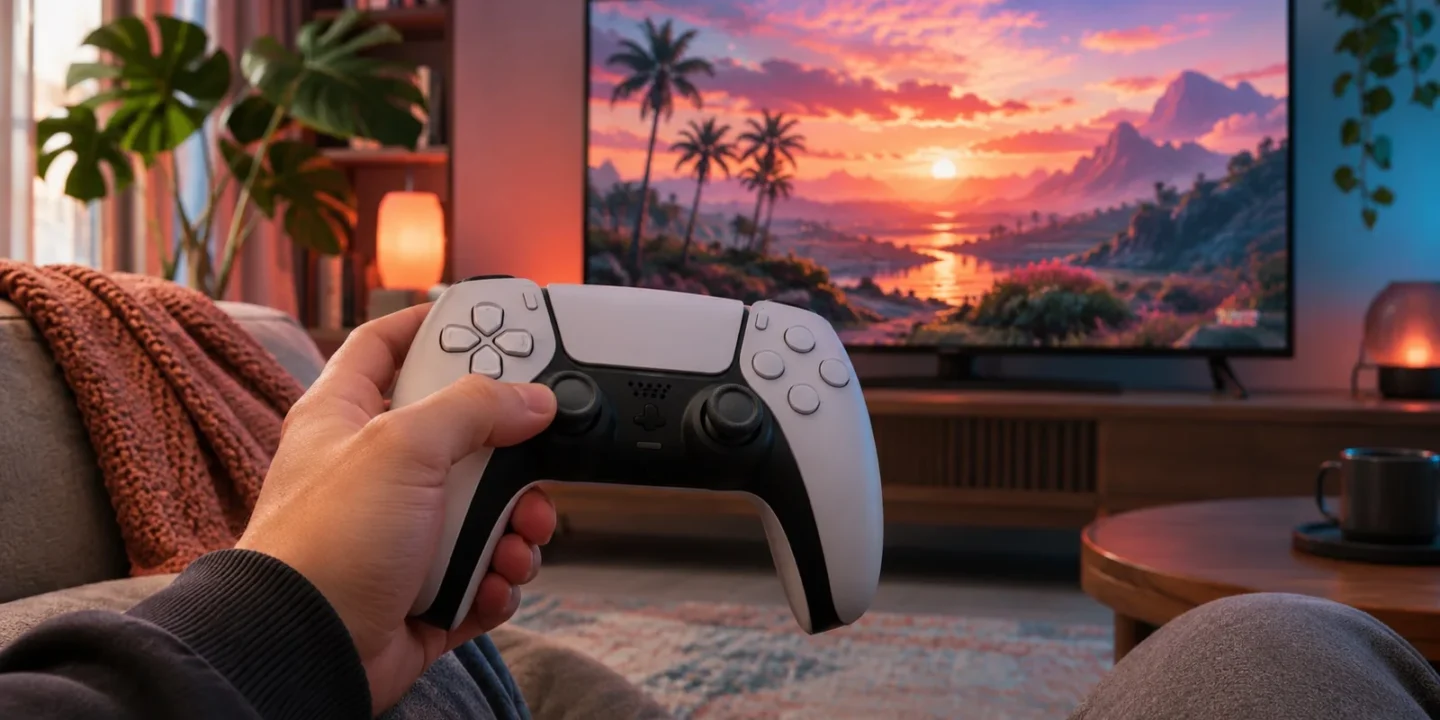
The best combat setup for GTA 6 starts outside the game. Put your TV in Game Mode to cut input lag, check your controller for stick drift, and on PS5 set the haptics and adaptive triggers to a level you can hold comfortably for long sessions. Rockstar says GTA VI’s PS5 haptic feedback is “adjustable via accessibility settings”. Then, in the game’s own menus, tune camera and aiming sensitivity and any aim assist or targeting options your version offers.
“GTA 6 best settings for aiming”, “GTA 6 aim assist” and “GTA 6 trigger effect” are rising searches as players get ready for the first shootout. This guide covers the confirmed console features that affect combat, step-by-step settings for PS5 and Xbox, the in-game options to look for, and how to test changes without guessing. Console menu paths are from Sony and Microsoft. GTA 6-specific details come only from Rockstar’s and PlayStation’s official announcements.
The short answers
| Question | Answer |
|---|---|
| Does GTA 6 use adaptive triggers on PS5? | Yes. PlayStation says the DualSense’s adaptive triggers “provide dynamic resistance” in GTA VI. |
| Can you turn down the haptics? | Yes. Rockstar says haptic feedback is adjustable through accessibility settings. |
| What frame rate does GTA 6 run at? | Rockstar says it targets 30 fps on current consoles. |
| Is there aim assist? | Check the game’s settings. Rockstar hasn’t published a full controls list. |
| What’s the biggest single improvement? | Turning on your TV’s Game Mode to reduce input lag |
What Rockstar and PlayStation have confirmed
Two official statements matter for combat:
- Rockstar, November 10, 2026: GTA VI for PS5 “includes high-fidelity haptic feedback fully integrated across the game on DualSense controllers and adjustable via accessibility settings”. The game targets 30 frames per second on current consoles.
- PlayStation Blog, September 3, 2026: “In Grand Theft Auto VI, the DualSense wireless controller’s haptic feedback and adaptive triggers instantly respond to the action and provide dynamic resistance.”
So on PS5, expect weapons to feel different through the triggers, and expect to be able to tone that down. Xbox controllers have standard rumble, and Microsoft hasn’t announced any special GTA 6 controller features.
Step 1: Reduce input lag
At a 30 fps target, each frame stays on screen for about 33 milliseconds. Your TV shouldn’t add more delay on top. This is the single biggest improvement for aiming:
- Switch your TV to Game Mode on the console’s HDMI input.
- Turn off motion smoothing, noise reduction and similar processing.
- Turn on ALLM (Auto Low Latency Mode) on the console and TV if both support it.
- Connect the console directly to the TV rather than through a receiver, if possible.
Our input lag guide explains each step for popular TV brands.
Step 2: Check your controller
Drift ruins aiming. Before you change any sensitivity settings:
- Put the controller down and watch the camera with no hands on the sticks.
- If it creeps, test in another game.
- If it drifts everywhere, it’s the controller, not GTA 6.
Our controller drift guide has a two-minute test and the fixes to try. If your controller keeps disconnecting mid-fight, see our PS5 controller disconnecting guide.
Step 3: Set haptics and triggers on PS5
At console level:
- Go to Settings → Accessories → Controllers (General).
- Adjust Vibration Intensity (strong, medium, weak or off).
- Adjust Trigger Effect Intensity (strong, medium, weak or off).
In the game, look in the accessibility or controls settings for haptic options, which Rockstar says are adjustable. A good approach is to start with medium triggers for long sessions and turn them up if you miss the feedback.
Who should turn triggers down?
- Players with hand fatigue or limited grip strength
- Long sessions, where resistance builds up strain
- Anyone who finds resistance slows their reactions in fast fights
Step 4: Tune camera and aim sensitivity in the game
Look in GTA 6’s controls or camera settings for options like these. Names vary, so check your installed version:
| Setting | What to try |
|---|---|
| Camera / look sensitivity | Lower it if the view overshoots when you turn. Raise it if turning feels sluggish. |
| Aim sensitivity | Often separate from camera sensitivity. Lower it for precise shots. |
| Dead zone | Increase slightly if you have mild drift. Too high makes small corrections hard. |
| Aim assist or targeting mode | Most console shooters offer assisted, partial or free aim options. Pick what suits you. |
| Invert look | Match your habits from other games |
| Vibration | Lower or turn off if it distracts you |
Change one setting at a time, then test it in the same situation.
Step 5: Consider your controls layout
If a frequently used combat action is awkwardly placed, remap it. Check the game’s own options first, then console-level remapping:
- PS5: Settings → Accessibility → Controllers → Custom Button Assignments
- Xbox: Xbox Accessories app → Configure → button mapping profiles
Our remapping guide and Xbox controller setup guide cover both, including pro controllers like the DualSense Edge and Xbox Elite with back buttons.
How to test your settings properly
Guessing leads to constant fiddling. A repeatable test is better:
- Pick a calm spot where you can aim at a fixed point.
- Do the same movement five times, such as turning to a target and stopping on it.
- Change one setting, then repeat the same five movements.
- Keep the change only if it clearly helps.
For input lag specifically, our input lag guide explains a slow-motion phone-camera test.
Starting settings by player type
These are starting points to adjust from, not rules:
| Player type | Triggers (PS5) | Vibration | Sensitivity | Other |
|---|---|---|---|---|
| New to shooters | Medium | Medium | Lower than default | Turn on aim assist if offered. Subtitles on. |
| Experienced console shooter player | Medium or strong | Medium | Default or higher | Try lower aim assist if offered |
| Long sessions or hand fatigue | Weak or off | Weak | Default | Remap awkward actions. Use toggles where offered. |
| Remote Play or cloud | Medium | Medium | Slightly lower | Prioritise a stable connection over max quality |
| Accessibility needs | Off | Off or weak | To taste | Adaptive controllers, toggles and remapping |
Xbox controller settings
Xbox controllers don’t have adaptive triggers, but you can still tune them:
- Open the Xbox Accessories app and select your controller.
- Choose Configure to create a profile.
- Adjust button mapping, stick inversion and vibration.
- On an Xbox Elite Series 2, set trigger stops for quicker trigger pulls and adjust stick sensitivity curves.
Save the profile and make sure it’s the active one before playing. Our Xbox controller setup guide walks through it.
Aiming over Remote Play or the cloud
Streaming adds delay you can’t fully remove. If you play GTA 6 through Remote Play, or through Xbox Cloud Gaming on Xbox One or Series X|S:
- Use a wired connection for the console, or for the streaming device if possible.
- Lower aim sensitivity slightly to compensate for the extra delay.
- Expect Series S-level visuals in the cloud. Rockstar says cloud play uses Xbox Series S graphics settings.
See our Remote Play guide and Xbox One cloud guide.
Common mistakes
- Raising sensitivity to “fix” lag. Lag is a display or connection problem. Fix Game Mode first.
- Changing several settings at once. You won’t know which one helped.
- Ignoring drift. No setting fixes a failing stick for long.
- Leaving triggers on strong for marathon sessions. Hand fatigue builds slowly.
Display settings that affect aiming
Beyond Game Mode, a few display settings make targets easier to see:
- Calibrate HDR so dark interiors and bright skies both show detail. Enemies in shadow are easier to spot. See our HDR guide.
- Check brightness in the game’s display settings, using the in-game calibration if offered.
- Turn off TV “dynamic contrast”, which can crush shadow detail.
- Leave VRR on if your TV supports it. It does no harm and can smooth uneven frame rates.
PS5 Pro owners
Rockstar says PS5 Pro offers “improved clarity through PlayStation Spectral Super Resolution (PSSR) and ray-traced shadows only available on PlayStation 5 Pro”. Sharper image clarity can make distant targets easier to read, but the frame-rate target is still 30 fps. The settings above apply equally.
Combat in GTA 6: what the official images show
Rockstar’s launch gallery gives a sense of the combat situations you’ll face:
- Vehicle combat: Lucia firing an assault rifle from a car while Jason drives toward a Gruppe Sechs security truck, and Jason leaning out of a window with an automatic weapon as helicopters fly overhead
- Robberies: the Fleeca bank robbery with SMGs, and a mall robbery on motorbikes
- Close quarters: Jason squaring up to three men, one holding a knife
- Police pressure: officers approaching with guns drawn, and helicopters with searchlights
Vehicle combat appears often, so check whether the game has separate settings for aiming from vehicles. See our weapons guide for every weapon Rockstar has named.
Accessibility options for combat
If standard controls are hard to use, combine these:
- Lower trigger resistance or turn it off on PS5.
- Use toggle options where offered, instead of holding buttons down.
- Remap actions to buttons you can reach comfortably.
- Use adaptive hardware: the PS5 Access controller, or Xbox Adaptive Controller and Copilot.
- Turn on subtitles, because combat dialogue is often fast. See our subtitles guide.
Audio helps you aim
Hearing where shots come from is part of combat. On PS5, Rockstar says GTA VI has “improved spatial audio rendering so all in-game sounds take full advantage of Tempest 3D Audio”. Headphones are the easiest way to benefit. On any console, make sure your audio output is set correctly. See our no sound guide if something’s off.
A five-minute combat setup checklist
- TV in Game Mode, motion smoothing off
- Controller charged, firmware updated, no drift
- PS5 trigger and vibration intensity set to a comfortable level
- In-game: camera sensitivity, aim sensitivity and aim assist set
- Awkward buttons remapped
- Subtitles on, headphones in for 3D audio (PS5)
- Settings tested with the five-turn routine
How we’ll update this guide
Rockstar hasn’t published GTA 6’s full controls and settings list. Once we can check the released game, we’ll add the exact menu names for aim assist, targeting modes and haptic options, labelled Tested with the platform and version. Read more about how we verify.
Frequently asked questions
How do I turn off adaptive triggers in GTA 6?
On PS5, set Trigger Effect Intensity to off under Settings → Accessories → Controllers (General), and check the game’s accessibility settings, where Rockstar says haptics are adjustable.
Is there aim assist in GTA 6?
Check the game’s controls and targeting settings in your installed version. Rockstar hasn’t published a full controls list.
Why does aiming feel slow?
Usually TV processing delay. Turn on Game Mode and switch off motion smoothing. The 30 fps target also makes avoiding extra lag more important.
What’s the best sensitivity for GTA 6?
There isn’t one right answer. Start at the default, change one setting at a time, and use the repeatable test above.
Does the GTA VI DualSense aim better?
No. It works like any DualSense. You’re paying for the design. See our controller guide.
Does GTA 6 run better for aiming on PS5 Pro?
Rockstar says PS5 Pro adds PSSR and ray-traced shadows. The frame-rate target is 30 fps on all current consoles. See our PS5 Pro guide.
Should I use a wired controller?
It removes wireless interference and battery issues as possible causes. The difference in delay is usually small.
Do I need to change settings for every session?
No. Once you’ve found settings that work, they’re saved with your profile and game settings. Write them down in case an update or reinstall resets them.
Can I adjust haptics differently for weapons and driving?
Rockstar says haptics are adjustable via accessibility settings, but hasn’t published how detailed those options are. Check the game’s accessibility menu.
Does vibration affect aiming?
Strong vibration can make fine aim harder for some players. Lower it if you notice it.