



If friends can hear you in a console party but your mic fails in a game session, the headset is already passing a basic input test. Check the session’s chat channel, mute settings, and account permissions. If nobody can hear you in a party either, start with the console input and headset controls.
Voice chat problems have two halves: your microphone input (can others hear you?) and chat output (can you hear them?). Each half has its own settings on the headset, the console, and in the game session. This guide separates them so you can find the faulty link quickly on PS5 and Xbox Series X|S, without resetting everything at once.
Which voice chat problem do you have?
| Symptom | Most likely cause | Start here |
|---|---|---|
| Nobody can hear you anywhere | Mute switch, mic input device, or headset connection | Test the mic outside the game |
| Party works, game chat doesn’t | Chat channel, in-session mute, or account permissions | Check chat routing |
| You can speak but can’t hear others | Chat output device or game/chat balance | If you can speak but can’t hear the party |
| Others hear echo or their own voice | Speakers picked up by your mic, or monitoring too high | Echo and feedback section below |
| Your voice cuts in and out | Wireless signal, low battery, or network | Wireless headset checks below |
Test the mic outside the game
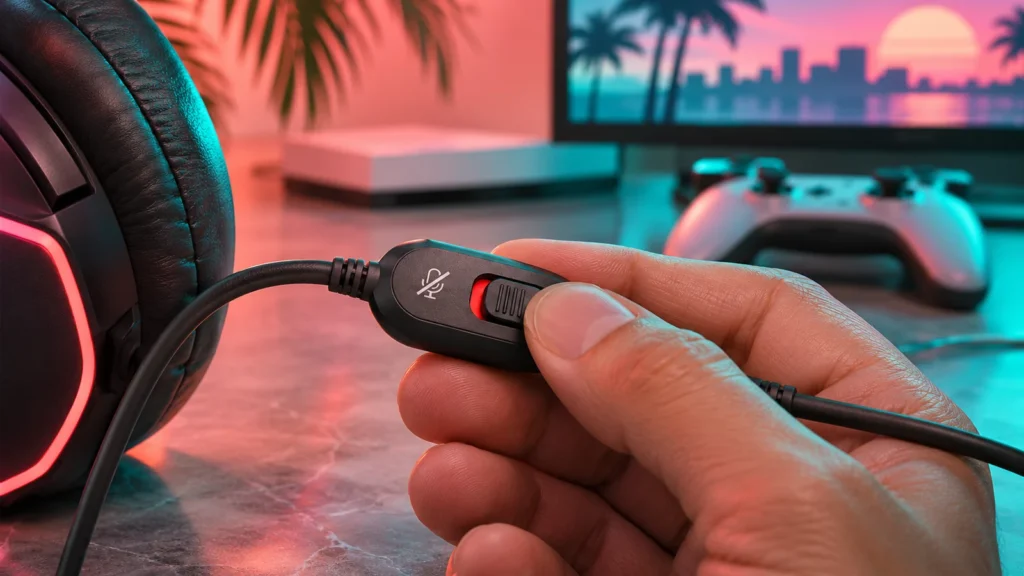
- Check the mute switch on the headset. If you’re using a DualSense, check its mute button too.
- Connect the headset directly to your supported controller port or its supplied wireless adapter. If it’s wireless, verify the charge and connection first.
- On PS5, use Settings → Sound → Microphone to check the selected input and adjust the microphone level while speaking.
- On Xbox, join a party with someone who can confirm whether your voice comes through. If your headset has a dedicated mic-monitoring or mix control, check the hardware settings too.
The PS5 mute button catches everyone out
The DualSense has a built-in microphone and a mute button below the PS button. When it glows orange, your mic is muted. Press it once to unmute. Hold it to mute both mic and sound output. If you plug in a headset, the console switches to the headset mic automatically, but the mute button still controls it.
Xbox: check the input device and party settings
On Xbox, open the guide and go to Parties & chats. Start a party with a friend and speak. If your profile picture lights up when you talk, the console is picking up your mic. If it doesn’t, the problem is the headset, its connection, or a mute switch. Under Settings → General → Volume & audio output, check Mic monitoring if you want to hear yourself, and the chat mixer settings.
Check chat routing and account permissions
If your voice works at the console level, check whether you’re in platform party chat or the session’s game chat. Check whether another player muted you, and whether the account’s communication permissions allow the kind of chat you’re trying to use. If a headset works on one controller but fails on another, repeat the party test with the same cable and headset before assuming the game is responsible.
Party chat vs game chat
When you’re in a console party, you usually hear your party rather than other players in the game session. If you want to talk to people in the session who aren’t in your party, leave the party or switch to game chat. If you only want your friends, a party is the most reliable option.
Account and parental controls
Communication can be restricted at account level, especially on child accounts or family groups:
- PS5: check Settings → Family and Parental Controls. The family manager can restrict communication with other players.
- Xbox: check the privacy and online safety settings for the account at account.xbox.com, or in Settings → Account → Privacy & online safety. “Others can communicate with voice, text or invites” must allow the people you want to talk to.
If you can speak but can’t hear the party
Check the chat and game balance on your headset or console. Raising overall volume won’t help much if the balance is pushed all the way toward game audio. If you can’t hear the game either, follow the GTA 6 game-audio guide and confirm which output device is selected.
On PS5, open the Control Center with a quick press of the PS button, select the sound card, and adjust the game and chat balance. On Xbox, the headset section under Volume & audio output includes a Chat mixer that can lower other sounds when someone talks.
Echo, feedback and background noise
If your friends hear themselves or a lot of background noise:
- Use headphones, not TV speakers, for voice chat. A mic near speakers picks up the game and your friends’ voices.
- Lower mic monitoring if your headset plays your own voice back to you.
- Move the boom mic about two finger-widths from your mouth, slightly to the side, so it picks up your voice rather than breathing.
- Adjust the mic level on PS5 under Settings → Sound → Microphone → Adjust Microphone Level, so normal speech sits in the middle of the meter.
Wireless headset checks
Wireless headsets add a few more links to check:
- Charge the headset fully. Low battery often causes crackling or dropouts before the headset turns off.
- Plug the USB adapter directly into the console, not into a hub.
- Re-pair the headset following the maker’s instructions.
- Update the headset firmware, if the maker provides an app or PC tool.
- Keep other wireless devices away from the adapter while testing.
Set up your headset for clear voice chat
Once your mic works, a few minutes of setup makes you easier to hear and stops friends asking you to repeat yourself:
- Set the mic level so normal speech reaches the middle of the meter, not the top.
- Turn off noise sources near the mic, such as fans, open windows or a loud TV.
- Use push-to-talk or mute when you aren’t speaking in busy lobbies, if the session offers it.
- Check the game/chat balance so you can hear teammates over explosions.
- Save a known-good setup. Note the settings that work, so you can restore them if someone changes them.
A two-minute voice chat test
Before a long session, run this quick check with a friend:
- Join a console party and say a few words. Can they hear you clearly?
- Ask them to speak while GTA 6 audio is playing. Can you hear them over the game?
- Leave the party and join the same game session. Does chat still work?
If any step fails, the table at the top of this guide shows which section to check next.
What to record before you contact support
Write down the headset model, whether it connects over a controller jack or wireless adapter, and whether your platform party test passed. If another headset works on the same controller, keep that result too. This gives support a reproducible comparison with the same account and console.
Frequently asked questions
Why can’t anyone hear me in GTA 6?
Start with mute switches, including the PS5 controller’s mute button. Then test in a console party. If the party works, check the game’s chat channel and whether other players have muted you.
Can I use the PS5 controller’s built-in mic?
Yes, the DualSense has a built-in mic. It works without a headset, but it picks up TV sound, so a headset gives clearer voice chat.
Why do my friends hear an echo of themselves?
Usually your mic is picking up their voices from your TV speakers. Use headphones for chat, or lower your speaker volume.
Do I need an online subscription for voice chat?
Console party chat between friends doesn’t normally need a paid subscription on PS5 or Xbox. Online multiplayer modes generally do need the platform’s online membership. Check the requirements for any online mode when it becomes available. Single-player doesn’t need chat at all.
Why does my mic work in a party but not in the game?
The console mic path is fine, so the problem is the game session. Check you’re not still in a party, which takes priority. Check the game’s own voice chat setting, and whether other players have muted you.
My mic is too quiet. How do I make it louder?
On PS5, raise the level under Settings → Sound → Microphone → Adjust Microphone Level. On Xbox, check the headset’s own mic gain, often set in the maker’s app. Also move the boom mic closer to your mouth.
Why does my voice sound robotic or choppy to others?
Usually it’s the network or a wireless headset signal. Test on a wired connection, charge the headset, and move the wireless adapter away from other devices.
Related guides
- GTA 6 No Sound on PS5 or Xbox? How to Fix Game Audio
- How to Record GTA 6 Clips and Screenshots on PS5 or Xbox
- How to Play GTA 6 With Remote Play on PS5 or Xbox
- GTA 6 Controller Disconnecting on PS5: DualSense Charging and Connection Checks
- Xbox Family Settings for a Household With GTA 6
- PS5 Family Controls for a Household With GTA 6
- Best Headset for GTA 6: What to Look For on PS5 and Xbox