


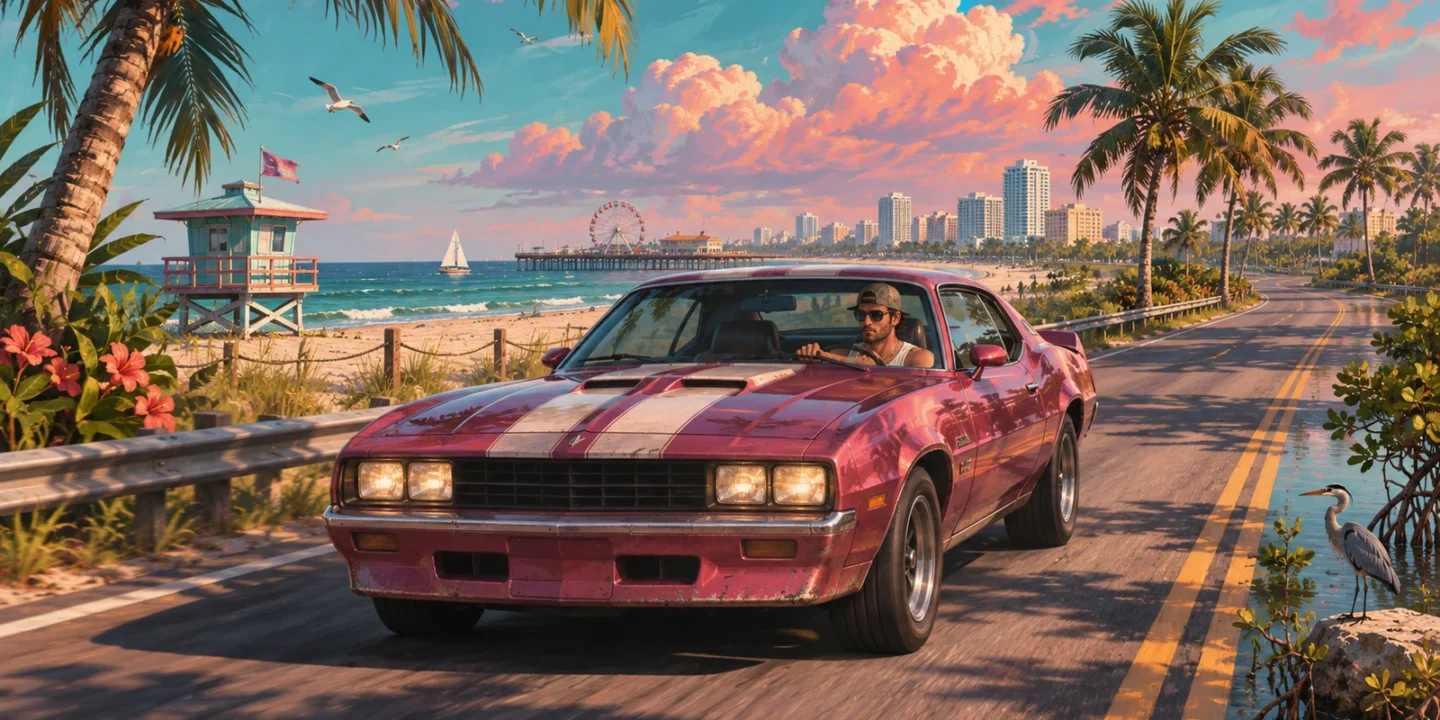
To auto drive in GTA 6, get in a vehicle, set a waypoint on the map, switch to the cinematic camera and tap the accelerator until the Auto-Drive prompt appears. Then hold Circle on PS5 or B on Xbox. Your character will drive to the waypoint on their own, and you can switch between three driving speeds. It’s perfect for long trips across Leonida, enjoying the scenery or lining up screenshots.
This guide walks through the controls on PS5 and Xbox, the Auto Drive setting, how to take back control and what to do if the prompt won’t appear.

How to auto drive, step by step
- Get in a vehicle. Auto-Drive only works while you’re driving.
- Set a waypoint. Open the map and mark your destination.
- Switch to cinematic view. Hold down on the d-pad to open camera options, then press Options (PS5) or Menu (Xbox) to switch to Cinematic View.
- Accelerate gently with R2 (PS5) or RT (Xbox) until the Auto-Drive prompt appears.
- Hold Circle (PS5) or B (Xbox) to start Auto-Drive.
- Sit back. The car follows the route to your waypoint.
Changing the driving speed
Auto-Drive has three speeds. Use L2/R2 (PS5) or LT/RT (Xbox) to move between them. A slower speed is good for sightseeing and screenshots, while a faster one gets you across the map quicker.

How to take back control
When you want to drive yourself again, either:
- Hold down on the d-pad again, or
- Use the “Disable Auto Drive” prompt when it appears.
Guides describe both methods. Use whichever your game shows.
The Auto Drive setting: Restricted vs Unrestricted
GTA 6 has an Auto Drive option in the gameplay settings. Guides disagree on the default, but describe two modes:
- Restricted: Auto-Drive sticks to normal roads.
- Unrestricted: Auto-Drive can travel outside normal roads.
If you want Auto-Drive to handle off-road routes, look for Gameplay > Auto Drive in settings and choose Unrestricted. If you prefer the car to stay on roads, use Restricted.
| Control | PS5 | Xbox |
|---|---|---|
| Camera options | Hold d-pad down | Hold d-pad down |
| Cinematic view | Options | Menu |
| Accelerate to show prompt | R2 | RT |
| Start Auto-Drive | Hold Circle | Hold B |
| Change speed | L2 / R2 | LT / RT |
| Stop Auto-Drive | Hold d-pad down or use prompt | Hold d-pad down or use prompt |

Why won’t the Auto-Drive prompt appear?
The two most common reasons:
- No waypoint is set. Auto-Drive needs a destination. Open the map and mark one.
- You’re not in cinematic view. The prompt only appears in the cinematic camera.
Also check that you’re accelerating gently. The prompt appears once you start moving. If you’re off-road and nothing happens, try switching the setting to Unrestricted.
When auto drive is most useful
- Long trips across Leonida. The map is roughly twice the size of GTA 5’s, according to Rockstar. Our map size guide explains the distances.
- Sightseeing. Cruise across the Keys bridges or along Ocean Beach. Our Leonida Keys guide and Ocean Beach guide cover the views.
- Screenshots and clips. Cinematic view plus a slow speed makes great footage. Our screenshot tips and recording guide help you capture it.
- Listening to the radio. Let the car drive while you enjoy the stations. Our radio stations guide lists them.
When not to use it
Auto-Drive is a relaxed travel tool, not a getaway driver. Avoid it:
- During police chases. You’ll want full control.
- In an Advanced-tracker car. It alerts the police when you slow down, and Auto-Drive’s careful driving may slow at junctions. Our keeping stolen cars guide explains trackers.
- On time-sensitive missions, where a faster manual route may be better.

Shooting while driving
If you want to fight from a vehicle, drive manually. Aiming from a car uses your sidearm, so a strong pistol helps. Our best weapons guide covers the pistols players rate highest, and our Focus guide explains slow-motion aiming.
Best routes to auto drive
Some drives are especially good with Auto-Drive and cinematic view:
- The Keys bridges. Long, straight and surrounded by water. They’re a classic scenic route.
- Ocean Beach at sunset. Pastel hotels and white sand along the waterfront.
- Into Mount Kalaga. Winding roads through hills and forest. Use Unrestricted mode if you want to follow trails.
- Across Vice City at night. City lights, traffic and the skyline.
Our Mount Kalaga guide and Vice City guide cover these areas.
Auto drive with different vehicles
Auto-Drive is designed around driving to a waypoint, so it works best with road vehicles. If you’re using an off-road vehicle in rough terrain, switching the setting to Unrestricted lets it leave normal roads. Our off-road vehicles guide and motorcycles guide cover vehicles suited to different terrain.
Accessibility and comfort
Auto-Drive is also a comfort feature. Long trips across a map roughly twice the size of GTA 5’s can be tiring with manual driving, and letting the car handle the route gives your hands a rest. If you use other accessibility options, our subtitles and accessibility guide covers what GTA 6 offers.
Combining auto drive with other features
- Phone apps: check messages or apps while the car drives.
- Scooter Bros: summon a registered car, then auto drive it to your destination.
- Screenshots: frame shots while the car drives itself in cinematic view.
- Radio: enjoy the in-game stations on long trips.
Auto drive troubleshooting checklist
- Are you in a vehicle?
- Is a waypoint set?
- Are you in cinematic view?
- Are you accelerating gently to make the prompt appear?
- If you’re off-road, is the setting on Unrestricted?
If all five are true and Auto-Drive still won’t start, restart the game and check for updates. Our update guide tracks patches.
Frequently asked questions
How do you auto drive in GTA 6?
Set a waypoint, switch to cinematic view (hold d-pad down, then Options or Menu), accelerate gently and hold Circle (PS5) or B (Xbox).
How do you stop auto drive in GTA 6?
Hold down on the d-pad again or use the Disable Auto Drive prompt.
Can you change the auto drive speed?
Yes. There are three speeds, changed with L2/R2 on PS5 or LT/RT on Xbox.
Why can’t I auto drive?
Usually because there’s no waypoint set or you’re not in cinematic view.
Can auto drive go off-road?
Yes, if you set Auto Drive to Unrestricted in the gameplay settings.