


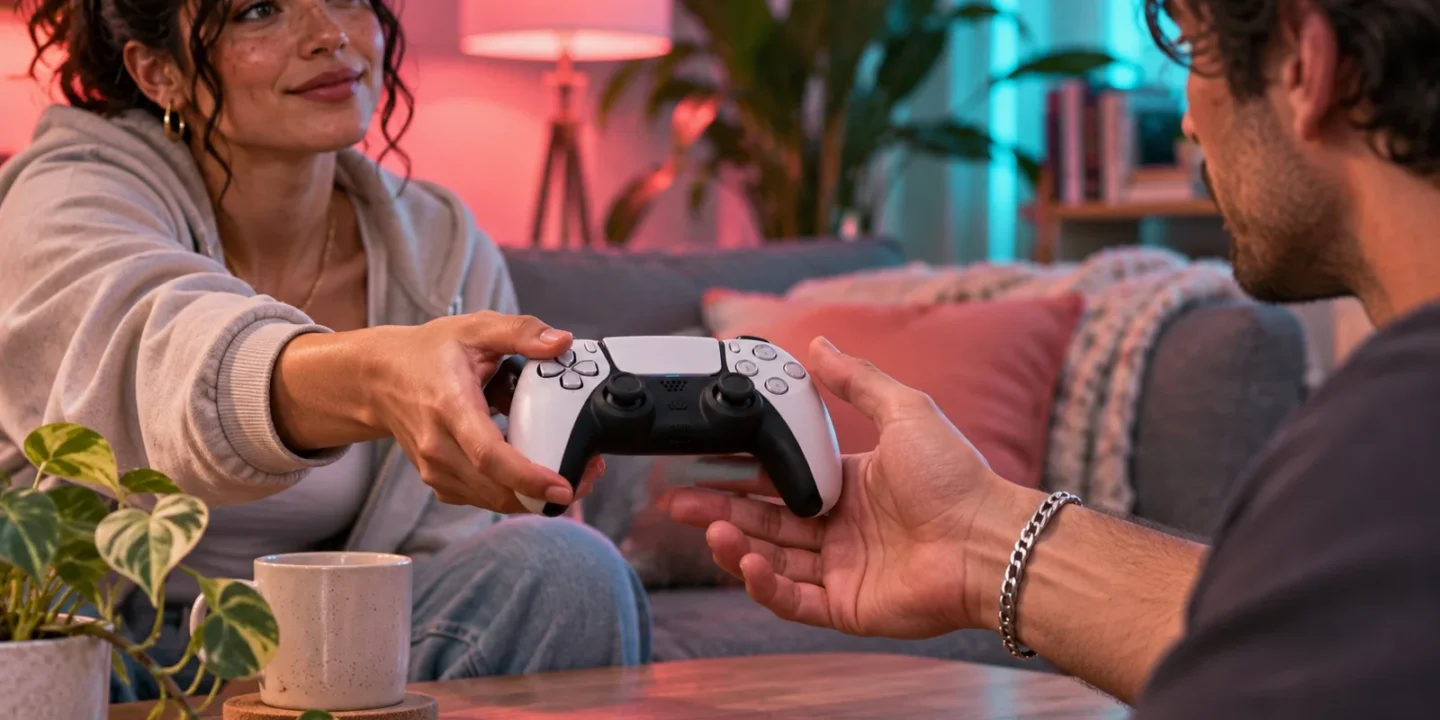
On a shared PS5, start by separating who owns GTA 6 from who plays it. The buying account holds the purchase. Each player should check that they are using their intended profile before loading or creating progress. Sony’s Console Sharing and Offline Play feature can provide supported access to purchases for other users on a designated PS5, subject to the product and account rules. Those access arrangements deserve a separate check from whether the correct saved progress is loaded.
This guide is for households setting up their own console. It explains a practical way to map accounts, test access, avoid profile confusion, and prepare for hardware changes. It does not assume every add-on or promotion shares in the same way as the base game. Check the terms for the actual product and ask the relevant account holder before changing a designation that affects another console.
Make a household account map
Write down the console name, each player’s online ID, and the account that bought or redeemed the game. Add whether each person has already created progress. This can be a private note rather than a technical document. The useful detail is the relationship between the people and their accounts. Avoid recording passwords where everybody can see them merely to make the map more convenient.
A common setup is one adult who purchases games and another who plays under a different profile. Another is a player who buys on one account but has always played on a second account. Both situations can be understood once the roles are explicit. If trouble appears later, the map helps you answer whether a message concerns the buyer’s entitlement, the player’s restrictions, or a save associated with a different user.
Review the supported sharing setting
Sony documents Console Sharing and Offline Play under Settings → Users and Accounts → Other. Its support page explains the designated-console arrangement and the kinds of purchases and benefits other users may access. Read the current limits before changing the setting, particularly if the owner also plays on another PS5. Sony’s Console Sharing and Offline Play guide
Treat the setting as a household decision. If you enable it on the living-room machine, check what that means for the other PS5 the same owner uses. A quick fix for one person can alter another person’s expected offline access. Keep the account holder involved and record which console the household intends to designate. This prevents repeated setting changes whenever somebody moves between rooms.
Test the base game before the extras
Start under the buying account and confirm the intended library item launches. Then close it and test under the second player’s own account. These two tests establish different things. The first checks the purchase and installation. The second checks that player’s access on the household machine. If the first succeeds and the second fails, focus on sharing or account restrictions before deleting a working installation.
When testing, identify the product precisely. A store may show multiple editions, upgrades, and promotional packs near the same title. Do not use an Ultimate upgrade’s price or an add-on listing as the sole test for ownership of the base game. Compare the receipt and library item, then use the actual game entry for the launch test. Keep product-specific errors separate so the successful base-game setup remains clear.
Give each player a recognizable profile
Use names or avatars the household can distinguish at a glance. Before starting a session, check the profile in the console interface. This matters most after another person has just finished. A controller changing hands does not automatically explain which user is active. A few seconds of checking can avoid an evening of progress being created under the wrong identity.
If two users share a similar nickname, agree on a simple habit such as reading the online ID before launch. Keep the habit practical. You do not need a complicated checklist for every session, only a reliable way to make sure the player and profile match. If someone accidentally starts on another profile, identify what was created before continuing. Do not assume the console can merge two users’ histories into the save you originally wanted.
Understand why the purchase and save may differ
Buying the game answers whether an account owns access. Playing answers whose progress is being recorded. In a shared household those can legitimately be different accounts. If the second player sees an opening screen under the purchaser, that may simply be the purchaser’s own progress state. Return to the intended player before concluding that a save vanished.
When troubleshooting, ask where the wanted session was played and which profile was active. A receipt will not answer that. A save timestamp may help, but a recognizable objective or checkpoint is stronger context. Record each regular player’s last wanted state before a console move or repair. That lets the household verify the result for everyone rather than testing only the owner and assuming the rest followed.
Check add-ons individually
Some extras are downloadable packages, others are entitlements, promotions, currency, or subscriptions. Their terms can differ. Sony’s add-on support explains checking the purchase, account, and installation status. Use that route for the exact item that is missing rather than assuming that successful base-game access proves every extra should appear for every profile. Sony’s add-on troubleshooting
For example, one user may see the game while another expects a promotional subscription month. Those are different products with different eligibility. Keep the promotion tied to the account and terms that granted it. If a purchased item appears under the buyer but not the second player, record that distinction and inspect the product’s sharing rules. Avoid repeatedly purchasing the same content while the entitlement question remains unresolved.
Family restrictions remain relevant
An owned game and a supported sharing arrangement do not eliminate age or family controls. On a child account, inspect the restrictions and product rating with the family manager. Sony documents game access, spending, and communication controls separately. A responsible setup keeps those decisions under the authorized adult’s account rather than using another person’s profile to work around the restriction. Sony’s family-control guide
For adults sharing the machine, the useful lesson is to identify the actual message. A content restriction should lead to the family controls, while a purchase error should lead to entitlement checks. If you are setting up the console for several generations of users, use separate profiles and review each person’s access intentionally. The household arrangement should make the expected result clear for each user.
Set up a clean session handover
The outgoing player should finish saving and exit normally. The next player should verify their own profile before launching. If people often swap quickly, agree on a visible stopping point such as returning to the home screen. This creates a simple boundary between sessions. It also makes later troubleshooting easier because the household can say who played and when rather than reconstructing one long mixed session.
If the console is used remotely, include that in the routine. A phone session can still involve the account connected to the host console. Confirm which user has access before another person starts locally. Keep the home-console and remote-session histories clear if progress later seems unexpected. The principle is the same: know who is playing, under which identity, and on which machine.
Plan for offline access before it matters
If the household expects the game to work during a network outage or while travelling, test the planned setup in advance using the intended profile and installed title. First establish that access works while online. Then follow the supported offline configuration for the designated console and observe the actual result. A successful online test cannot by itself prove how the same account arrangement behaves without a connection.
Do the test at a convenient time and restore your normal network setup afterward. Record the profile and console involved. If the test fails, inspect the ownership and designated-console arrangement while support and account access are still available. This is easier than trying to resolve an unexpected lock after leaving home with the only controller and a console whose settings nobody remembers.
Example: two adults and one purchase
Alex buys the game and Sam plays it on the shared PS5. The household verifies that Alex’s transaction is complete, configures the supported designated-console arrangement, and tests a launch under Sam. Sam then uses the same profile for every session. Alex’s purchase record and Sam’s progress are documented separately, which makes future save checks understandable.
Later, a padlock appears only under Sam. Alex’s launch still succeeds. The household now has evidence that the installation and owner’s access work. They review whether the designation changed when Alex set up another console and compare the exact error Sam sees. That is a narrower investigation than reinstalling the title, deleting Sam’s profile, or assuming the original purchase somehow moved to a new account.
Example: the game works but a bonus is absent
Both players can launch the base game, but Sam cannot find an extra associated with Alex’s purchase. The first question is which extra. If it is a subscription offer, the account-specific claim terms may explain the result. If it is a downloadable pack, check the package and product rules. If it is an in-game item, verify how the publisher says to obtain it rather than guessing a location in the story.
Keep the successful base-game access intact while investigating the one missing product. Ask support with the receipt, exact item name, owning account, and profiles tested. That evidence lets them explain eligibility or delivery without confusing it with whether the title can launch. A useful household setup can include different benefits for different accounts, as long as the differences follow the actual product terms.
Prepare for moving to another PS5
Before upgrading or replacing hardware, make an inventory for every household player. Record the owned software, wanted progress, captures, and intended designated console. The owner can verify the purchase and installation, but each player should test their own checkpoint on the destination. One user’s success does not prove that every other save or restriction was transferred as expected.
Keep the old console available until those checks pass. If the new machine has been used before restoration, account for any newer data there as well. Review the platform’s migration tools rather than assuming an installation drive carries every user’s progress. The move is complete when the people who use the console can each reach the access and progress state the household intended.
A practical note for temporary guests
If a guest uses the console, agree on the profile and access arrangement before starting. Identify whether they are continuing their own progress, trying the owner’s game briefly, or using a separate local profile. Those goals can have different account implications. At the end, finish the save process and return the machine to its ordinary household setup. Check that the next regular player selects their own identity. If the guest signed into a personal account, let them handle their own sign-out and account details. Keep the household’s designation and purchase records clear rather than changing them casually for a short visit. The same simple routine prevents confusion about who created a new save and whose purchases appear in a library after a busy evening with several people passing controllers around.
Frequently asked questions
Does everyone need to buy another copy?
Check Sony’s supported sharing feature and the product’s rules for your intended use. A local user’s missing access does not automatically mean a second purchase is required. Establish who owns the title, which console is designated, and whether any account restriction applies. Then repeat the launch under the affected profile to verify the actual result.
Can we use one profile for convenience?
Decide based on the progress and identity you want to maintain. If everyone uses the same account, their activity can be difficult to separate. Distinct profiles make it clearer whose saves, settings, and account history you are checking. If you already share one profile, document the existing situation before creating new accounts and assuming the old progress will transfer between them.
Why can the owner play while another user sees a lock?
That comparison suggests investigating the second user’s access arrangement and restrictions. Record the owner’s successful launch, inspect the supported sharing setting, and read the affected user’s error. Use the license guide when the message specifically concerns ownership. Keep the profiles straight throughout testing so a successful owner’s session is not mistaken for a fixed second-player session.
Will a shared installation combine our saves?
Treat software access and progress identity as separate checks. Verify the intended profile before playing and inspect its own progress when troubleshooting. Do not assume a shared game tile implies that every person will see the same checkpoint. If you need a game-specific feature for transferring or merging progress, look for the publisher’s explicit support for that feature before relying on it.
Verify the result for each regular player
End setup by asking each person to perform the task they actually need: launch, load their wanted progress, and check any eligible extra they care about. Write down remaining differences as specific product or account questions. That gives the household a clear working arrangement and a focused path for any support issue that remains.
Related guides
- How to Back Up GTA 6 Saves on PS5 With PlayStation Plus
- GTA 6 Padlock on PS5: Restore Licenses and Check Game Ownership
- PS5 Family Controls for a Household With GTA 6
- GTA 6 Won’t Unlock After Downloading? PS5 and Xbox Checks
- Xbox Family Settings for a Household With GTA 6
- GTA 6 Bonus Content Missing on PS5? Check Add-ons and Entitlements
- How to Download GTA 6 to PS5 From PlayStation App
- How to Move GTA 6 From PS5 to PS5 Pro or Another PS5