


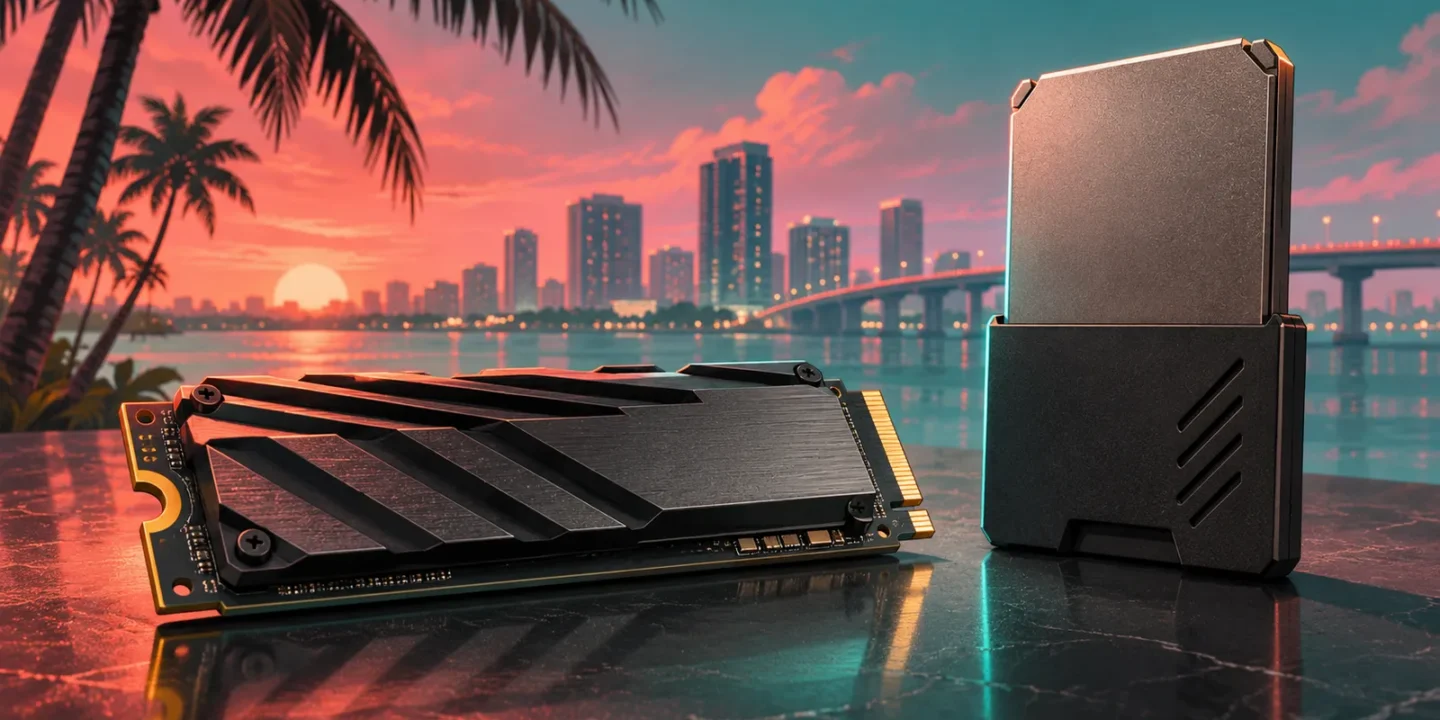
The best storage upgrade for GTA 6 depends on your console and the problem you need to solve. For PS5 players who need more space to install and play PS5 games, a compatible internal M.2 NVMe SSD is the relevant upgrade category. For Xbox Series X|S players who want additional storage for current-generation games, use an officially compatible Storage Expansion Card. An ordinary USB drive serves a different purpose and should not be mistaken for either of those products.
This guide recommends categories and example products using official platform requirements and manufacturer documentation. It does not claim that we benchmarked these drives in GTA 6 or measured a load-time winner. It also does not assign an unverified installation size to the game. Check the current download requirement and free space on your own console before purchasing. If deleting or archiving an unused game gives you enough room, you may not need new hardware at all.
Quick recommendations by console
| Console and goal | Relevant upgrade | Examples to compare |
|---|---|---|
| PS5: install and play more PS5 games | Compatible internal M.2 NVMe SSD with suitable cooling | WD_BLACK SN850P; Samsung 990 PRO with Heatsink |
| Xbox Series X|S: expand current-generation game storage | Officially compatible console Storage Expansion Card | Seagate Storage Expansion Card; WD_BLACK C50 |
| PS5: archive PS5 games to free internal space | Compatible USB extended storage | Choose for archive needs; copy PS5 games back before playing |
These are not interchangeable shopping categories. A PS5 M.2 drive does not plug into the Xbox expansion slot, and a USB enclosure does not convert a PC SSD into an Xbox Storage Expansion Card. Begin with the exact console model and the intended use. That single step prevents the most expensive common mistake: buying fast storage that connects successfully but cannot perform the task you bought it for.
Check the space problem before buying
Open your console’s storage management screen and compare available space with the current requirement shown for the game. Leave room for your ordinary use and updates rather than trying to fill the drive to the final megabyte. Do not rely on an old download-size headline or assume that another player’s installation has the same content and version.
Then inspect what already occupies the storage. An unused game, large capture collection, or archive you no longer need may account for the shortage. Make a deliberate choice about what to remove, and distinguish game installations from saved progress. Do not delete unfamiliar data merely because a generic guide says to “clear space.” If your library is small and you do not mind reinstalling occasionally, management may be enough. A hardware upgrade becomes more useful when storage pressure is recurring and the convenience is worth the cost.
PS5 M.2 requirements that matter
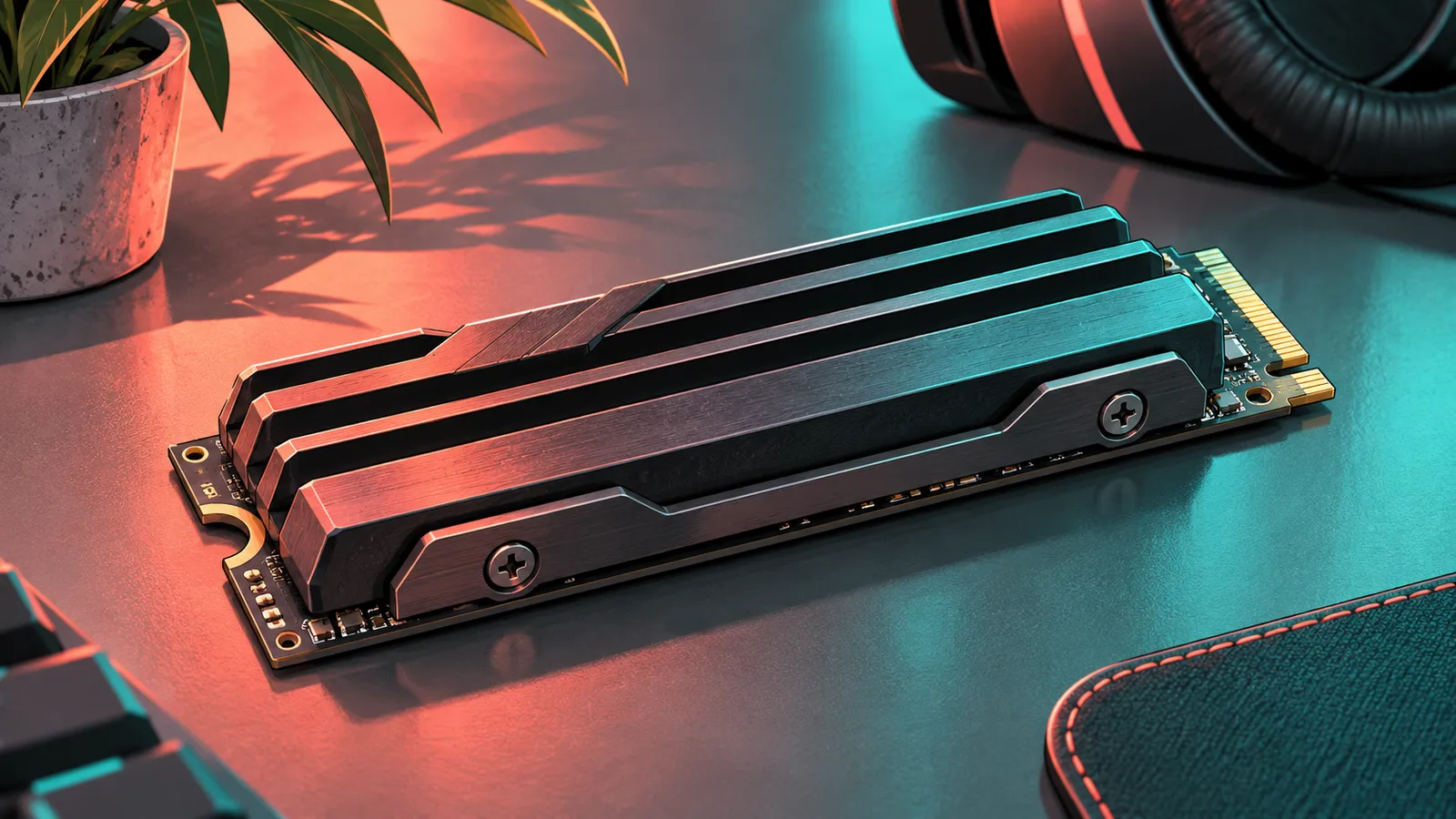
Sony’s current M.2 support page specifies PCIe Gen4 x4 M.2 NVMe, Key M, with capacities from 250 GB to 8 TB. Supported lengths include 2230, 2242, 2260, 2280, and 22110. The complete assembly, including cooling, must fit the listed dimensions: up to 25 mm wide and 11.25 mm thick, with the specified clearance above and below the board. Sony recommends sequential reads of at least 5,500 MB/s and requires effective heat dissipation.
Use those requirements as a checklist for the exact SKU you are considering. “M.2” describes a form factor and connection family, not universal PS5 compatibility. A SATA M.2 product or an oversized heatsink is not made suitable by a retailer placing “gaming” in the title. If a listing is unclear, compare its official specification sheet with Sony’s requirements before ordering. The cooling assembly is part of the fit, not an optional detail to consider after the drive arrives.
PS5 example: WD_BLACK SN850P
The manufacturer’s SN850P data sheet identifies the product as a heatsink-equipped NVMe SSD designed for PS5 consoles. It is a useful comparison point for buyers who prefer a product explicitly positioned for that platform rather than choosing a bare drive and a separate cooling solution.
That positioning does not make it the automatically best value at every price or capacity. Compare the exact capacity, local warranty, seller, and total cost with alternatives. This guide does not claim a measured GTA 6 advantage over other compatible drives. The recommendation is about suitability and purchase simplicity. If a more expensive variant offers a speed figure above what the console requires, ask what practical benefit is demonstrated for your use. Do not pay a large premium solely because the biggest number on the box is larger.
PS5 example: Samsung 990 PRO with Heatsink
Samsung’s official 990 PRO with Heatsink listing identifies PS5 compatibility. The phrase “with Heatsink” matters because a bare-drive listing is a different purchase configuration. Compare the full product name and model number rather than assuming every 990 PRO package includes the same cooling hardware.
This is another criteria-based option, not a hands-on load-time winner. Check the exact capacity and dimensions against the current platform requirements, then compare the local price and warranty. If you are considering an older stock unit or a different regional SKU, use the relevant manufacturer support information rather than a retailer’s shortened description. A good buying decision is reproducible: another person should be able to identify the same product and understand why it fits. Brand reputation alone is not enough to establish that the item in your cart is the correct version.
Choosing 1 TB, 2 TB, or more
Capacity should follow your library and habits. A smaller upgrade may be enough if you keep only a few large games installed. A larger one may be more convenient if you regularly switch between many titles or have a slow connection that makes reinstalling inconvenient. Those are practical preferences, not GTA 6-specific requirements.
Compare the total price and the price per unit of advertised capacity, but do not let the ratio alone push you beyond your budget. A larger drive can be better value per terabyte while still being unnecessary spending. Also remember that advertised capacity and space available after formatting are not presented identically. Avoid planning around a perfectly exact fit. The best capacity is one that gives you useful headroom for the library you actually maintain. This article does not prescribe an 8 TB purchase simply because Sony supports that upper limit.
Xbox uses a different expansion category
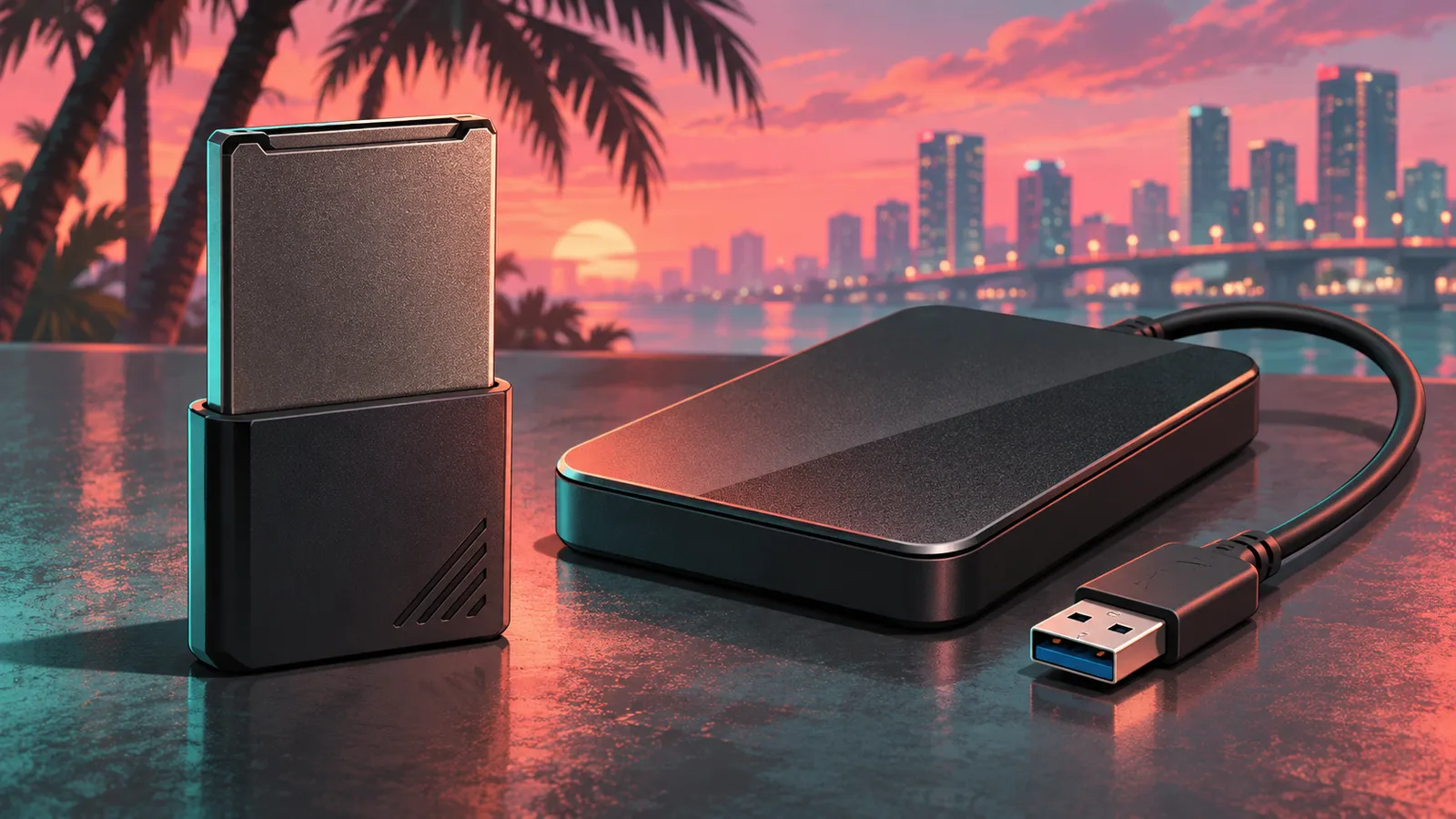
The Xbox Series X|S expansion slot is designed for compatible console Storage Expansion Cards. Xbox Wire’s Seagate explanation describes inserting the card into the rear expansion port and using it for installations and direct play. This is a distinct product category from an ordinary external USB SSD.
For shopping, look for explicit Xbox Series X|S expansion-card compatibility and the exact manufacturer product. Do not assume that a drive described as “for Xbox” uses the expansion slot; that wording can also appear on USB products intended for other storage roles. Read the connection type and intended use. The convenience of the card format is that it avoids selecting a separate enclosure or internal cooling assembly. The tradeoff is that you must compare products within the compatible category rather than treating any high-speed PC SSD as a drop-in substitute.
Xbox examples: Seagate and WD_BLACK C50
The Seagate Storage Expansion Card page describes direct play of Xbox Series X|S optimized games. The WD_BLACK C50 product page identifies it as a licensed Xbox storage expansion product. These are the relevant alternatives to compare when you want expansion-slot storage rather than a USB archive device.
This guide does not rank one as faster in GTA 6. Compare current local capacity options, price, warranty, availability, and seller reliability. Read the exact product name because both manufacturers sell other gaming drives that use different connections and serve different purposes. If the card you want is unavailable, do not buy a similarly branded USB product assuming it will behave identically. A useful substitute must satisfy the same task, not merely carry the same logo or a similar capacity number.
USB storage is useful when its role is clear
Sony’s storage management documentation explains that PS5 games stored on USB extended storage must be moved back to console or M.2 storage before play. That makes USB useful for archiving, but it does not make an external USB SSD a direct-play PS5 expansion equivalent.
The practical choice depends on what bothers you. If you want to keep games locally and avoid downloading them again, an archive can be useful even when copying is required. If you want a larger immediately playable PS5 library, an internal compatible M.2 drive better matches that goal. For Xbox, use current platform guidance for the exact title and storage role rather than assuming every game behaves the same way. This guide’s direct-play recommendation for current-generation expansion remains the compatible expansion-card category. A cheap external drive can be good value for archiving while being the wrong answer to a direct-play problem.
Installation advice should match the console model
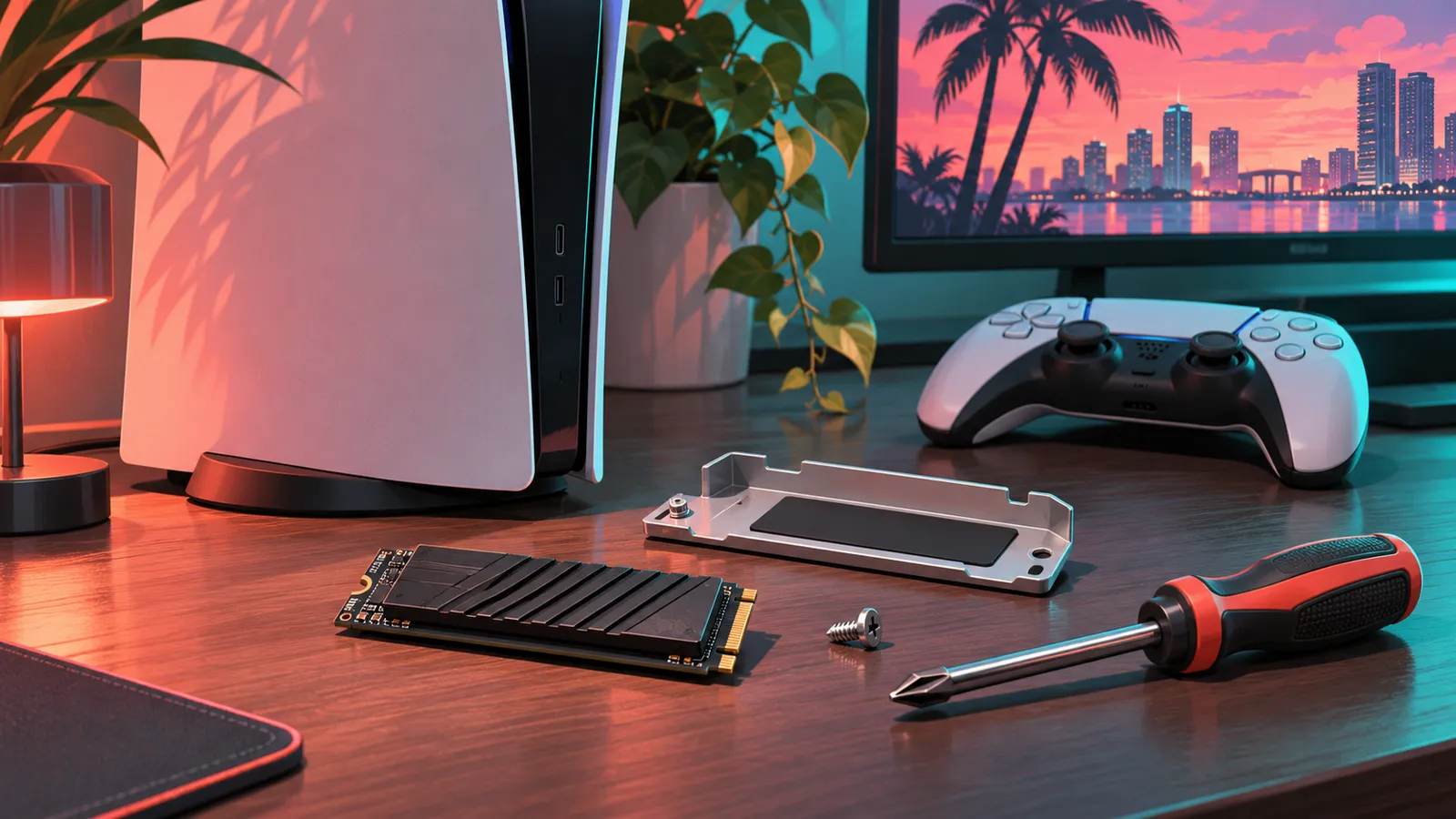
For PS5, follow Sony’s current illustrated installation instructions for your model and the drive manufacturer’s guidance. The support procedure includes shutting down, disconnecting the console, allowing it to cool, opening the correct expansion area, securing the drive appropriately, and completing the console’s setup process. This article is a buying guide, not a substitute for the model-specific installation diagrams.
Before beginning, read the whole procedure and confirm that you have the appropriate tools and workspace. Keep the packaging and receipt until the drive is recognized and functioning as expected. Do not improvise a fit if the heatsink or drive assembly does not sit correctly. For Xbox expansion cards, follow the current official insertion and setup instructions. The formats differ substantially, so a video for one console is not guidance for the other. If you prefer a technician to handle installation, include that cost in the purchase comparison rather than treating the drive’s price as the entire expense.
Formatting and saved progress need separate attention
A storage device may need preparation or formatting for console use. Formatting can erase existing contents on the selected device, so confirm the device and follow the console’s explanation before accepting. Do not use a drive containing the only copy of important files as an experiment without first preserving those files elsewhere.
Also distinguish game installations, captures, and saved progress. They are different categories, and moving one does not necessarily move the others. A storage upgrade should not be treated as an automatic backup strategy. Use the platform’s current saved-data guidance for your account and setup. This is a practical data-management point, not a reason to make the purchase seem more complicated than it is. Knowing what you are moving prevents avoidable confusion and makes it easier to verify that the upgrade solved the original problem: having the space you need in the place where the game can use it.
Faster advertising does not guarantee a GTA 6 benefit
A drive’s advertised sequential speed is not a promise of a matching improvement in every game. Loading behavior depends on the system, the game, the task, and other factors. This article did not test those variables, so it does not claim that a particular SSD reduces GTA 6 loading by a percentage or improves frame rate.
Choose a drive that satisfies the platform requirements, then compare capacity, cost, cooling, and support. If a review offers game-specific results, check the methodology: what was loaded, how many runs were performed, which version was used, and what storage was being compared? A single stopwatch result can be interesting without establishing a universal ranking. For most buyers facing a capacity shortage, the reliable benefit is additional usable storage. That is enough to justify an upgrade when you need it, without adding unsupported performance promises.
Verify the upgrade against the original goal
Once setup is complete, confirm that the console recognizes the expected device and capacity, then place an appropriate game on it and check that the intended task works. For a direct-play upgrade, that means verifying the installation location and launching from the supported storage. For an archive, it means understanding the copy-back process before you depend on it.
Keep the result practical. You bought capacity or convenience, so verify those benefits rather than looking for an unpromised frame-rate improvement. If the device is not recognized, stop and compare the exact product and setup with official support instructions. Do not repeatedly format unrelated drives or improvise a physical fit. A clear check of the device, connection, and intended storage role is a better starting point than assuming that every problem requires replacing the console or buying an even faster drive.
Final buying checklist and common questions
What should a PS5 player compare? Compatible internal M.2 NVMe products with suitable cooling, including the exact heatsink-equipped options discussed here. What should an Xbox Series player compare? Officially compatible Storage Expansion Cards such as Seagate and WD_BLACK C50. Can a USB SSD replace either category for every purpose? No; identify whether you need archiving or direct play. How much space does GTA 6 need? Check the current requirement on your console rather than relying on an unverified figure here.
Before buying, confirm the console, task, exact SKU, capacity, cooling or connection type, local warranty, and total price. Keep a working controller purchase separate from the storage decision; our controller guide explains when an accessory upgrade is useful. The strongest storage recommendation is the one that solves your actual shortage with a compatible product. If your existing space is sufficient after sensible management, keep the money and play.
Related guides
- GTA 6 Install Size: How Much Space Do You Need on PS5 and Xbox?
- GTA 6 on a PS5 M.2 SSD: Compatibility, Installation and Moving the Game
- GTA 6 Xbox Storage Plan: Internal SSD, Expansion Card or USB Drive?
- PS5 USB Backup Guide for GTA 6 Players Before a Reset or Repair
- How to Free Up Space for GTA 6 on PS5 and Xbox
- Storage Planner