



If GTA 6 keeps crashing on PS5 or Xbox Series X|S, begin by identifying what stops working and recording any error code. An application closing to the dashboard is different from a frozen picture, a lost HDMI signal, or the console turning off. Those symptoms can have different causes, so a useful fix starts with the observation rather than a long list of unrelated resets.
PlayStation’s Grand Theft Auto VI troubleshooting page covers download and launch issues, missing content and PS5 console problems, and Rockstar Support handles game-specific requests. This guide builds a cautious diagnostic sequence around that advice and official console support. It does not claim that we reproduced your crash or found a universal launch bug. Start with reversible checks, test after each change, and protect saved progress before considering any action that replaces or removes data. No factory reset or saved-data deletion is required by the steps below.
First identify the symptom
| What happens | First useful check |
|---|---|
| Game closes to the home screen | Record the code and the action just before it closed |
| Picture stops but console menus respond | Close the application normally and note the location |
| Screen loses signal while console remains on | Inspect display path and the screen’s signal message |
| Console turns off or shows a heat warning | Stop and follow the platform’s power or ventilation guidance |
| Only one saved game fails to load | Preserve copies and use the save-loading guide |
Describe the result precisely. “It crashed” is understandable, but the detail determines the next step. A photograph of an error can be useful; a guessed diagnosis such as “the SSD is broken” can send troubleshooting in the wrong direction before any evidence supports it.
Step 1: preserve the error and circumstances
Write down the exact error code, console model, game version if visible, and whether the problem happened during launch, loading, a mission, or ordinary exploration. Note whether the application returned to the dashboard or the whole system stopped. If possible, capture the message before dismissing it.
This information helps you use the correct support page and prevents a code from being misremembered. It also creates a baseline for later tests. A crash that always occurs at the same interaction is different from one that appears across several unrelated games. Do not start changing several settings before recording the original behavior. Once the circumstances are lost, it becomes harder to tell whether a later result reflects a genuine improvement or simply a different test. A short factual record is one of the most useful parts of troubleshooting, even when the eventual fix is simple.
Step 2: close and restart normally
If the console remains responsive, close GTA 6 through its normal application controls and restart it. On Xbox, a fully quit application is a clearer test than simply returning to it from a suspended state. To do that, press the Xbox button to open the guide, highlight GTA 6, press the Menu button and choose Quit, then start the game again.
If the issue returns, restart the console through its ordinary power menu and test once more. Avoid repeatedly pulling power while the system is responsive or showing a save operation. A restart can clear a temporary state, but one successful launch does not prove the underlying issue is permanently fixed. Repeat the same ordinary action that caused the problem where doing so does not threaten progress, and record whether the result changed. If the console is unresponsive, use its current official shutdown guidance rather than improvising a sequence.
Step 3: check the installation and updates
Sony’s game-crash guidance advises checking that a digital game has fully downloaded and that game and system software are current. On PS5, the game’s Options menu provides Check for Update. Sony’s version guidance covers system and application checks. On Xbox, inspect the console’s update and installation status through its current interface.
Record the version before and after any update. That makes a support report more useful and avoids vague claims that a patch did or did not help. Do not assume a download continuing in the background is the same as a completed installation. If an update fails, address that installation problem before testing an unrelated graphics setting. This article does not name a particular patch as a guaranteed GTA 6 crash fix because no such fix was verified for your situation.
Step 4: test the same situation once
After a change, return to a comparable state and see whether the problem repeats. If a particular mission interaction caused the crash, note whether the same interaction still fails. If launch was the problem, test launch rather than declaring success after viewing the dashboard. Keep the test small and avoid unnecessary progress changes.
A useful result can be “unchanged,” “works once,” or “works repeatedly under the original conditions.” These are different confidence levels. If the crash becomes less frequent but remains present, say so rather than calling it solved. This approach prevents a common troubleshooting problem: changing five things, having one successful session, and being unable to tell which change mattered. It also makes it easier to reverse an unhelpful setting and gives support a clear account of what has already been tried.
Step 5: separate one-game problems from system-wide problems
Try another already installed game for an ordinary short session. The purpose is to compare scope, not to stress-test the console aggressively. If several unrelated games also close or the console powers off, the problem may belong in platform support rather than a GTA-specific workaround.
If only GTA 6 fails, that narrows the investigation but does not prove a single cause. Installation, a particular save, a game issue, and the current account context can still differ from other titles. Record the comparison without overstating it. “Other game worked during this test” is more accurate than “the hardware is definitely perfect.” Sony’s official guidance similarly distinguishes issues affecting one game from broader console trouble. Use that distinction to choose the next support route, not to make a hardware diagnosis from one short observation.
Step 6: inspect ventilation and power symptoms
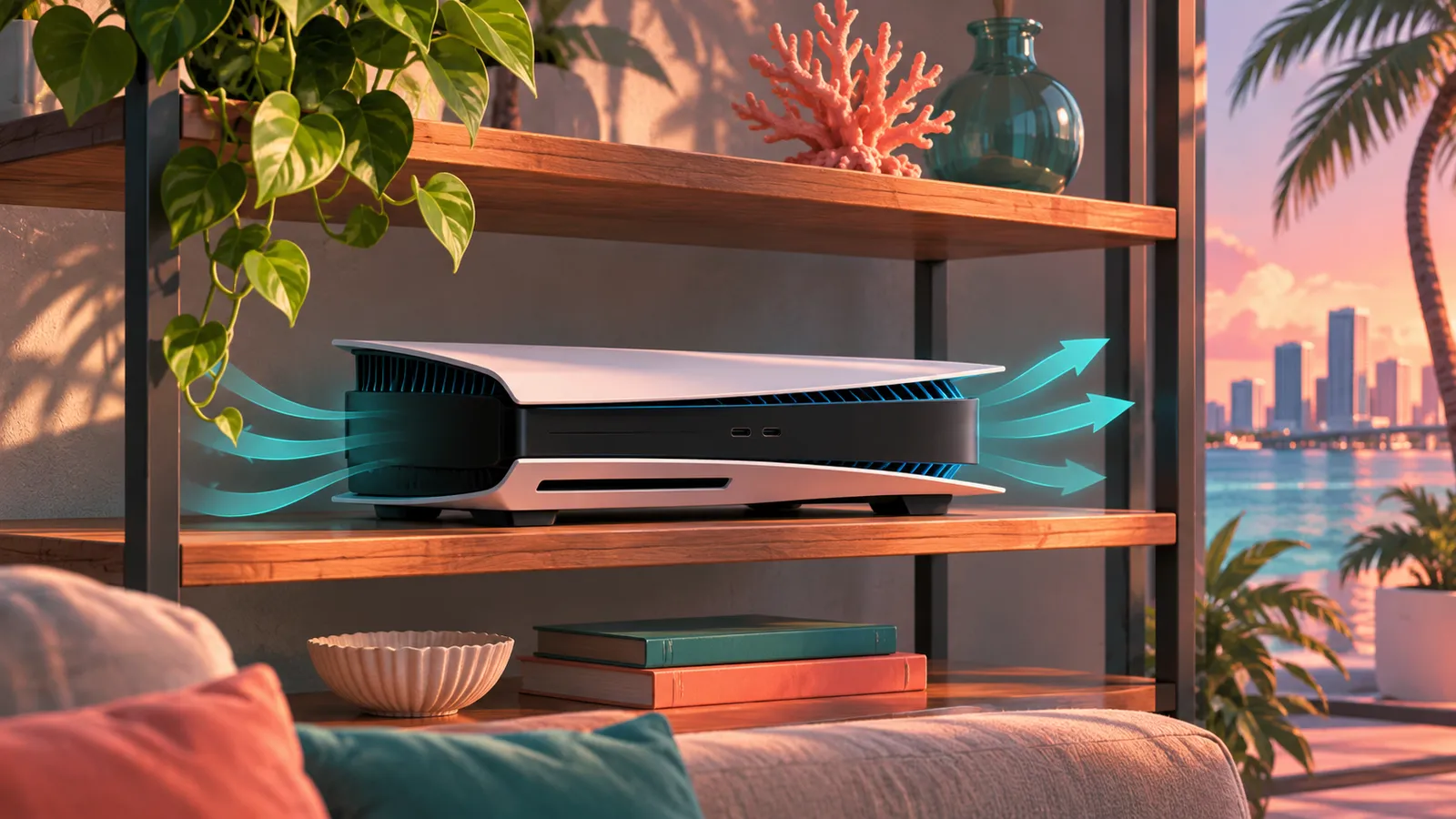
If you see a temperature warning, unexpected shutdown, or another power-related symptom, stop the ordinary crash loop and follow the console’s official guidance. Sony’s ventilation advice recommends keeping vents clear and providing space around the console. Its power troubleshooting page routes specific symptoms to the appropriate diagnostics.
Check the external setup without opening the console or attempting an internal repair. A cramped shelf or blocked vent is a different issue from a game returning to the dashboard with an application error. Louder fan activity alone does not establish overheating. Do not invent a temperature diagnosis from sound or a warm surface. If the console repeatedly shuts down, stop testing and use the platform’s support route. Continuing to reproduce a shutdown is not necessary to write a useful report and may not provide additional information.
Step 7: verify the storage role
Check where GTA 6 is installed and whether that storage is supported for playing the game. On PS5, an appropriate internal location differs from USB archival storage. On Xbox Series X|S, a compatible expansion card is a different category from an ordinary USB drive. Our storage guide explains those distinctions with manufacturer and platform references.
This is a compatibility check, not a claim that every crash is caused by storage or that a faster SSD will repair the game. If the installation is already in a supported location, record that and continue rather than buying hardware to solve an unproven problem. Do not move or format unrelated drives experimentally. If a support procedure requires reinstalling game files, keep saved-data management separate and confirm the exact item being changed. A storage device containing the only copy of important files should not become a casual troubleshooting tool.
Step 8: treat save-specific failures separately
If one saved game fails while another known-good save loads, preserve both and document the difference. Do not overwrite the failing copy simply to make the menu look clean. A loading problem can concern the save, synchronization, version compatibility, or another state that a general crash checklist does not resolve.
Use the save-loading and recovery guide before making cloud choices or deleting local data. A cloud copy is not automatically an older healthy backup, and a newer timestamp does not necessarily mean the copy contains the progress you want. If you cannot establish which copy is useful, stop before an overwrite and seek support. This boundary is practical: a crash investigation should not destroy the evidence or the only recoverable progress. Testing another save can narrow the symptom without becoming permission to erase the original one.
Step 9: consider reinstalling only the application
Sony’s official crash guidance includes reinstalling the game among later troubleshooting steps. That can address an installation problem, but it is not a promise to repair a damaged save or every repeatable game bug. Before proceeding, verify your account access, download availability, and the saved-data status you intend to preserve.
Read the selected item carefully. Removing an application and deleting saved progress are different actions, even if their menus are nearby. If the interface is unclear, use the current official platform instructions rather than guessing. Include the reinstall time and download size in your decision; it can be a substantial step and should follow the simpler checks. After reinstalling, test the original symptom and record the result. If nothing changes, do not repeat the same large download indefinitely without new evidence or a support recommendation that explains why another attempt is relevant.
Display blackouts are not always application crashes
If the console remains on and the display reports no signal, investigate the video path rather than assuming GTA 6 closed. A cable, port, display setting, or intermediate device can produce a different kind of interruption. Note whether sound continues and whether opening the console menu produces a picture.
The FPS and stuttering guide explains how to separate rendering concerns from display behavior. If you change the display connection, do it methodically and keep a route back to a working setup. This article does not claim that disabling a specific feature cures every blackout. Follow the platform’s current display guidance and the monitor or television manual. A precise symptom report saves time: an application error, a signal loss, and a frozen game should not all receive the same reset instructions merely because the screen stopped showing normal play.
Prepare a useful support report
Include the console model, game and system versions, exact code, installation location, and a short sequence that reproduces the problem. Add the frequency and whether another game or another known-good save behaved differently. List the checks already completed and the result of each, rather than only saying that you tried everything.
For GTA-specific repeated behavior, use Rockstar Support. For a platform error code, look it up through PlayStation or Xbox support for your console. If the issue involves repeated shutdowns or broader system failures, use the console support process. Do not include passwords or private account details in a public report. The aim is to provide enough technical context for diagnosis without exposing information that does not help explain the symptom. A clear report is a better next step than an untested factory reset after the ordinary checks have failed.
A launch-access error is a separate branch
If the console refuses to start the game and displays an ownership, activation, or account message, record that wording before following a crash procedure. An application that never opens has not necessarily encountered the same problem as one that closes during a mission. Rockstar’s support hub provides separate activation and installation categories for that reason.
Check the account and the current platform message rather than assuming a reinstall will solve every access error. Do not remove profiles or change account details as a casual experiment. If the issue began after switching accounts or devices, include that history in the report. A useful next step should answer a specific question about the symptom you have, not simply repeat the most common advice for a different kind of failure.
Stop once repeated testing adds no information
If the same check produces the same failure and no relevant condition has changed, another immediate attempt may not help. Preserve the error record and move to the appropriate support route. This is especially important for repeated shutdowns, save-related failures, or any prompt that asks to replace data. You do not need to demonstrate the problem dozens of times to make a useful report. A few clear observations, the software versions, and an accurate list of attempted checks provide a stronger basis for help while keeping the system and progress in a state you understand.
Frequently asked questions
Will these steps fix every crash? No; they narrow the problem using official guidance and reversible checks. Should I delete my save? Not as a general crash fix. Preserve progress and compare copies first. Should I buy a new SSD? Not without evidence of a relevant storage problem. Does a warm console prove overheating? No; use actual warnings and official diagnostics.
Should I reset the console to factory settings? That is outside this guide’s routine sequence and can erase data; use platform support if further recovery is needed. What if the game only feels uneven? Use the FPS guide rather than treating it as a crash. What is the most useful first step? Record the exact symptom and error. That gives every later action a purpose and helps you stop once the original problem is genuinely resolved.
Related guides
- GTA 6 Installed but Won’t Launch? PS5 and Xbox Fixes
- GTA 6 Console Gets Hot? PS5 and Xbox Ventilation Checks Before Assuming a Fault
- GTA 6 Update Guide: Patch Sizes, Versions and How to Update
- PS5 Safe Mode for GTA 6 Problems: Cache, Database and Reset Explained
- How to Report a GTA 6 Problem: Error Codes, Crash Evidence and the Right Support Team
- How to Save in GTA 6, and What to Do When You Can’t