


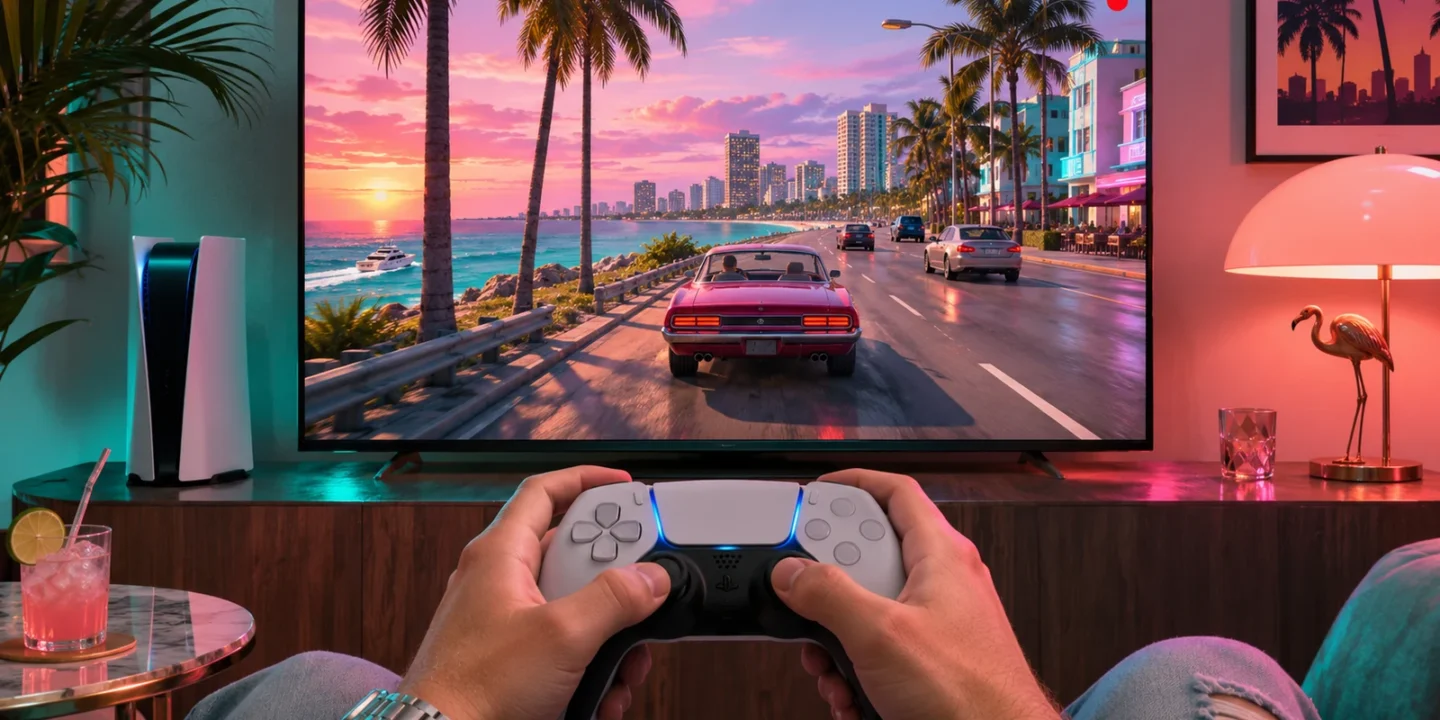
To save a GTA 6 moment you just saw, use your console’s recent-gameplay capture shortcut. To record a longer segment you’re planning, start a manual recording before it happens. Make a short test first so you can verify the framing and audio.
Both PS5 and Xbox Series X|S record gameplay in the background, so you can save a chase, crash or stunt after it happens. This guide covers the buttons and settings on each console, how to choose clip length and quality, how to get clips onto your phone or computer, and how to fix missing or cut-short recordings. It also covers how to record a problem clearly for a support request.
Capture options at a glance
| You want to | PS5 | Xbox Series X|S |
|---|---|---|
| Save what just happened | Create button → Save Recent Gameplay | Share button (hold), or guide → Capture & share → Record what happened |
| Take a screenshot | Create button (hold, by default) | Share button (press) |
| Record from now on | Create button → Start New Recording | Guide → Capture & share → Start recording |
| Find your captures | Media Gallery | Captures in the guide, or the Xbox app |
Save GTA 6 clips on PS5
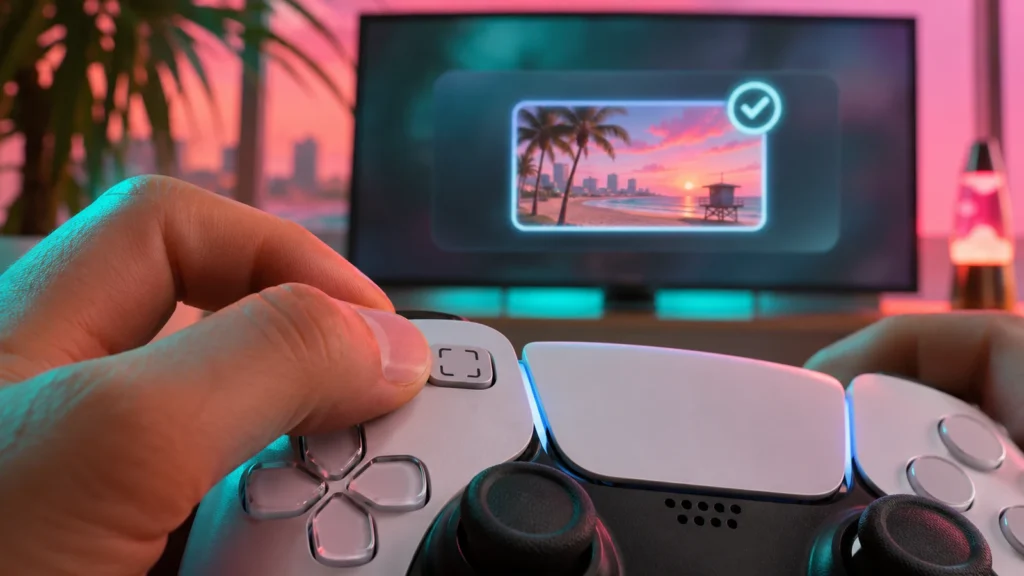
Press the Create button on the DualSense controller. Choose the option to save recent gameplay, take a screenshot, or start a new recording. Open Media Gallery afterward and play the clip to check that it includes the footage you wanted. If the capture has only part of the scene, check the available recording-duration settings before trying again.
PS5 capture settings worth changing
Go to Settings → Captures and Broadcasts → Captures:
- Shortcuts for Create Button: choose what a press and a hold do. “Easy Screenshots” makes a single press take a screenshot, and a hold opens the menu.
- Recent Gameplay Video Length: how far back Save Recent Gameplay reaches. Longer settings let you save more but make bigger files.
- Video Clip Format: resolution and file type. WebM is efficient. MP4 is more widely compatible for editing.
- Include your microphone audio: turn this off if you don’t want your voice or party chat in clips.
Save GTA 6 clips on Xbox Series X or S
Open the Xbox guide and use Capture & share to record what just happened or start a recording. If your controller has a Share button, check what its press and hold actions are configured to do. Use the Captures area to confirm the item saved before sharing it. Available length can depend on your capture settings and destination.
Xbox capture settings worth changing
Go to Settings → Preferences → Capture & share:
- Capture location: internal storage or an external drive.
- Game clip resolution: higher resolutions look sharper but can limit how much time you can save.
- Record what happened: how much recent gameplay is kept for the Share button hold.
- Automatically upload: sends captures to the cloud so you can get them on your phone through the Xbox app.
- Share button mapping: in Settings → Accessibility → Controller → Button mapping or the controller settings, you can change what press and hold do.
Getting clips onto your phone or computer
| Console | Easiest method | Alternative |
|---|---|---|
| PS5 | Turn on auto-upload to the PlayStation App, then download clips on your phone | Copy from Media Gallery to a USB drive |
| Xbox | Turn on auto-upload, then open Captures in the Xbox app | Copy captures to a USB drive from the Captures screen |
Cloud uploads are usually stored for a limited time, so download anything you want to keep. If you edit on a computer, copying full-quality files to USB avoids the extra compression that sharing apps sometimes add.
Make clips easier to use
For troubleshooting, record the symptom and the few seconds before it appears. Read the error code back from the recording before sending it, and crop or hide account details if you’re sharing the clip publicly. For a walkthrough, start recording before opening the menu or approaching the location, then review the clip to verify that it shows the complete sequence.
Tips for better-looking GTA 6 clips
- Turn off on-screen notifications while recording, so pop-ups don’t cover the action. Both consoles let you limit notifications during captures.
- Check audio levels. If music drowns out dialogue, adjust the game’s audio mix before recording.
- Use photo or replay tools if GTA 6 offers them in your installed version, for framed shots without the HUD.
- Keep clips short. A tight 20–30 second clip is easier to share and watch than a long recording.
- Steady the camera. Slow, smooth camera movement looks far better in clips than quick flicks of the stick.
Choosing quality: resolution and format
Higher quality means bigger files. Pick based on what you’ll do with the clip:
| Goal | Suggested setting |
|---|---|
| Quick sharing to friends or social media | 1080p, the console’s default format |
| Editing a montage on a computer | Highest resolution available, MP4 on PS5 for compatibility |
| Saving lots of clips with little space | Lower resolution and shorter recent gameplay length |
| Bug reports | 1080p is fine. Clarity of the error matters more than resolution |
Screenshots worth keeping
Screenshots are tiny compared with video, so take plenty. For better results:
- Pause or use any photo or replay tool the game offers, so you can frame the shot without the HUD.
- Shoot at golden hour or night-time for strong light and colour.
- On PS5, choose PNG for the best quality, or JPG for smaller files, in the capture settings.
- Check HDR captures on the device you’ll view them on. HDR screenshots can look different on phones or older monitors.
Sharing clips safely
Before posting a clip online, check what’s in it:
- Gamertags and online IDs of other players, which you may want to blur.
- Party chat audio if your microphone or friends were recorded.
- Notifications that show messages or names.
- Spoilers. Add a spoiler warning if the clip shows story moments, especially in launch week.
Recording a bug or crash for support
A short clip helps support understand a problem far quicker than a description:
- Turn on a long recent gameplay setting, so you can save the moments before a crash.
- Save the clip immediately after the problem appears.
- Show the version number if you can. See our update guide for where to find it.
- Capture any error code in a screenshot.
- Note what you were doing and whether it happens every time.
If the game crashes completely, the console may not save the last moments. Try reproducing the problem with a manual recording running. Our won’t-launch guide covers crash troubleshooting.
If the clip is missing or shorter than expected
Check the console’s local gallery before assuming the capture uploaded. If only the end of the moment survived, start a manual recording for the next attempt. Check how much storage is available and verify the clip’s duration and audio before deleting the source copy.
Common capture problems
| Problem | Fix |
|---|---|
| Clip shorter than expected | Increase the recent gameplay length in capture settings |
| No captures saved | Check free storage, then the capture location setting |
| Clip has no game sound | Check capture audio settings and the game’s audio output |
| Your voice is in clips | Turn off microphone audio in capture settings |
| Clip blocked or skipped | Some scenes or apps can restrict capture. Try a different moment |
Frequently asked questions
How do I record GTA 6 on PS5?
Press the Create button and choose Save Recent Gameplay for something that just happened, or Start New Recording to record from now. Clips are in Media Gallery.
How do I record GTA 6 on Xbox?
Hold the Share button to save what just happened, or open the guide and choose Capture & share. Find clips under Captures.
How long can a recording be?
It depends on your console’s capture settings and resolution. Check the options in the capture settings on your console.
Do captures take up storage space?
Yes. Long, high-resolution clips can be large. Back them up and delete old ones if space is tight. See the free-up-space guide.
Why didn’t my Share button save a clip?
Check what press and hold are set to do in the console’s controller or capture settings, and check there’s free storage. Then try again with a short test.
Can I record GTA 6 with a capture card instead?
Yes. A capture card records the HDMI signal from the console, which avoids the console’s own clip limits. Check whether the card supports your resolution, refresh rate and HDR settings.
Can I stream GTA 6 live from my console?
Both consoles support live broadcasting to supported services from their capture or share menus. Turn off notifications and check your microphone settings before going live, and keep spoilers in mind.
Where are my GTA 6 screenshots saved?
On PS5, in Media Gallery. On Xbox, under Captures in the guide, and in the Xbox app if auto-upload is on.