


If your GTA 6 download is stuck, open the console’s queue and write down how many gigabytes have downloaded. If that number rises while the percentage looks unchanged, the transfer is still moving. If the number stays unchanged and the queue reports a problem, follow the checks for your console before cancelling.
GTA 6 is one of the biggest console downloads yet. PlayStation advises 212 GB of free space for the PS5 preload, and millions of players are downloading it in the same week. Slow and stalled downloads are expected, and most can be fixed without starting again. This guide goes from the quickest checks to the more involved fixes, so work through it in order.
Start with the message in the queue
| What you see | First check |
|---|---|
| Stuck at 0% | See whether another item is downloading or the transfer is paused. |
| Percentage unchanged, GB increasing | Use the remaining GB to estimate the wait. |
| Very slow speed | Test your connection and pause other downloads. |
| “Queued” or “Waiting” for a long time | Check whether the console is waiting for another item, or for a system update. |
| Insufficient space | Check free space on the selected install drive. |
| Installation stopped | Record the error code and check storage and network status. |
| Finished, but game locked | Check launch time and the account that owns the game. |
The difference between slow and stuck matters. A slow download is still making progress, and the best fix is to give it a better connection. A stuck download has stopped completely, and needs the console to retry or clear whatever is blocking it.
Is it stuck or just slow?
On a download this size, the percentage can stay the same for a long time even though data is arriving. One percent of 212 GB is more than 2 GB. At 25 Mbps, that single percent takes over ten minutes.
To check properly, look at the downloaded amount in GB (or the time remaining), wait five minutes, and look again. If the GB figure went up, the download is working and you’re dealing with speed, not a fault. Skip to the connection checks further down this page. If nothing changed in five minutes, the transfer has stalled. Carry on with the console steps below.
GTA 6 download stuck on PS5
Press the PS button and open Downloads/Uploads. Select GTA 6, choose Pause, then Resume. If the console shows an error, keep the exact wording or code. An error about available space calls for a different fix from a network error.
Go to Settings → Storage and check the destination drive. PlayStation’s GTA VI support page advises having 212 GB available for the PS5 preload. If you need to make room, check the Storage Planner and the free-space guide. If you have space, check PlayStation Service Status and look for a console system software update.
PlayStation also documents Cancel and Delete followed by downloading again from Game Library. Try that after the queue, storage, and connection checks, because restarting a transfer can cost hours.
More PS5 fixes, in order
- Restart the console properly. Hold the PS button, choose Power → Restart PS5. A real restart clears more than resuming from Rest Mode does. The queue resumes after the restart.
- Test the connection. Go to Settings → Network → Connection Status → Test Internet Connection. Note the download speed it reports. If the test fails, the problem is the network, not the game.
- Update the system software. Go to Settings → System → System Software → System Software Update and Settings. Pending system updates can hold other downloads in the queue.
- Check Rest Mode settings. If downloads only stall overnight, make sure Stay Connected to the Internet is on under Settings → System → Power Saving → Features Available in Rest Mode.
- Rebuild the database. As a later step, Safe Mode’s Clear Cache and Rebuild Database option can fix a corrupted download listing. Turn the PS5 off, then hold the power button until the second beep to enter Safe Mode. Connect the controller with a USB cable and choose the option. It doesn’t delete games or saves, but it can take a while. Use it only after the steps above.
GTA 6 installation stopped on Xbox Series X|S
Go to My games & apps → See all → Manage → Queue. Select GTA 6 and resume it if it’s paused. If another download is ahead of it, pause that transfer temporarily. Fully quit any game you’re playing and see whether the download speed improves.
If the error returns, confirm available space on the install drive and check Xbox status. Open Settings → General → Network settings → Test network connection if the queue still won’t move.
More Xbox fixes, in order
- Do a full restart. Press and hold the Xbox button on the controller, then choose Restart console. If that doesn’t help, hold the power button on the console for about 10 seconds until it shuts down, wait a minute, and turn it back on.
- Test speed and statistics. Under Settings → General → Network settings, choose Test network speed & statistics. High packet loss points to a Wi-Fi or router problem.
- Check the destination drive. If you install to an external USB drive, make sure it’s connected and has room. If it disconnects mid-download, the install stops.
- Check updates are on. Settings → System → Updates → Keep my games & apps up to date helps the queue keep moving.
- Change the power mode. If downloads only work while you’re playing, switch Settings → General → Power options to Sleep so the console keeps downloading when it’s off.
Check whether the connection is the problem
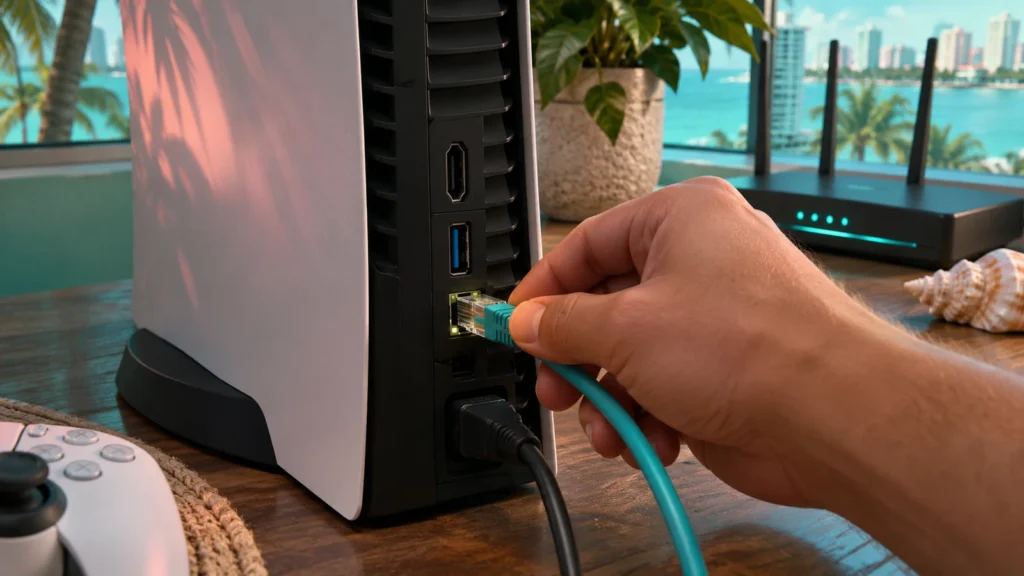
If several downloads have stalled, try a wired Ethernet connection, or move the console closer to the router and pause other large transfers. If GTA 6 is moving, estimate the wait using the speed the console actually shows. At a steady 50 Mbps, 20 GB takes about 53 minutes before overhead.
Why GTA 6 downloads slowly at launch
Even a perfect home network can’t download faster than the store sends data. Around a huge launch, many people are downloading the same files at the same time. Some broadband providers have also reported record demand during the preload week. If your speed test is fast but GTA 6 is slow, the bottleneck may be busy servers or traffic on your provider’s network rather than your setup. Patience, or downloading overnight, often fixes this better than any setting.
Ways to speed up a slow GTA 6 download
- Use Ethernet. A cable avoids interference from walls and neighbouring networks. It’s the most effective single change.
- Restart the router. Unplug it for 30 seconds. Routers that have been on for weeks can slow down.
- Free up bandwidth. Pause 4K streaming, cloud photo backups, PC game downloads and video calls on the same network.
- Quit the game you’re playing. Consoles usually download faster when no game is running.
- Download overnight. Store servers and home networks are usually less busy late at night.
What if GTA 6 never entered the queue?
Open the game’s store or library page using the account that bought it or redeemed the code. Check if a manual download is available. Automatic preload requires the relevant console download settings and a supported power mode.
If the game doesn’t appear in your library at all, the problem isn’t the download. It’s the purchase or code. Check your order history, and follow the code redemption guide if you bought a boxed copy.
Should you cancel and restart the download?
Cancelling and restarting is a last resort, not a first fix. Cancelling usually deletes what you’ve downloaded so far, so you’d start again from zero. Try it only when:
- The queue has shown no progress for a long time after a restart.
- The console keeps reporting a corrupted-data or installation error for GTA 6.
- Other downloads work fine and only GTA 6 is affected.
Before cancelling, write down any error code and take a photo of the queue screen. If the restarted download fails the same way, that information makes a support request much faster.
When to contact support
Contact PlayStation or Xbox support if the same error keeps appearing after you’ve restarted, checked storage and tested the network. Include the console model, the exact error code, how much had downloaded, and which drive you’re installing to. Check the platform status page first. If there’s an outage, waiting it out is quicker than troubleshooting.
Frequently asked questions
Why is my GTA 6 download stuck at 99%?
Near the end, the console often stops downloading and starts installing or verifying files, and that can look like a freeze. Give it time. If it hasn’t moved after 30 minutes, check free space, because the final stage can need extra room.
Why does the time remaining keep jumping around?
Time remaining is an estimate based on your speed in the last few moments. Speeds change all the time on a busy network, so the estimate jumps up and down. The downloaded GB figure is a more reliable sign of progress.
Will putting my console in Rest Mode or Sleep pause the download?
No, as long as the console is set to stay connected in Rest Mode (PS5) or uses Sleep mode (Xbox). If it shuts down fully, the download stops until you turn it back on.
Does deleting and redownloading GTA 6 make it faster?
Not usually. It throws away your progress and adds to the wait. Fix the connection or the queue first.
Related guides
- How to Download, Install & Update GTA 6 on PS5 and Xbox
- How to Free Up Space for GTA 6 on PS5 and Xbox
- GTA 6 Update Guide: Patch Sizes, Versions and How to Update
- GTA 6 Install Size: How Much Space Do You Need on PS5 and Xbox?
- GTA 6 Slow Download on Xbox: A Network Test You Can Repeat
- GTA 6 Downloads in PS5 Rest Mode: Setup and Troubleshooting
- GTA 6 Xbox Overnight Downloads: Sleep, Shutdown and Active Hours