


If GTA 6 downloads slowly on Xbox, compare the active queue with a console network test before changing settings. Record the time, connection type, downloaded amount, and whether another game or update is active. Then test one relevant change, such as closing a running game or using Ethernet, and compare the same observations. A repeatable result is more useful than collecting many settings changes without knowing which one helped.
This guide focuses on download diagnosis. It does not assume GTA 6 has a particular online multiplayer mode or that every problem described as lag has a network cause. A slow file transfer, delayed controller input, stalled installation, and unstable remote stream are different tasks. Identify the actual symptom so the next test answers the question you need resolved.
Decide whether the transfer is slow or stopped
Open the download queue and watch the downloaded amount over a measured period. If it increases, the transfer is moving even if the percentage rounds to the same number. If it remains unchanged, inspect the message: waiting, paused, installation stopped, or another error. A speed problem needs a moving transfer to compare. A blocked item may instead require room on the destination or a retry directed by the displayed code.
Write down which queue item you are following. A title can have multiple components or updates. If the first finishes and another begins, the number on screen may reset for the next item. That is different from progress being lost. Keep the item name, initial amount, final amount, and elapsed time together. This small record makes the result understandable when you return after a long break.
Record a baseline without changing anything
Note whether the console uses Wi-Fi or Ethernet, whether other household devices are transferring heavily, and whether a game is running. You are describing conditions rather than blaming them. If possible, observe the queue for a few minutes under ordinary use. This baseline gives the next test a fair comparison and prevents a random faster moment from being credited to an unrelated change.
Use the same approximate interval for later tests. If the connection fluctuates, repeat rather than selecting the best single reading. A sustained transfer over a measured period is a better estimate for a huge download than one displayed peak. Keep other software updates and device activity as consistent as you reasonably can so the comparison has a clear meaning.
Use the console’s connection tools
Xbox provides connection and network-statistics tests in its network settings. A publisher’s official Series X|S troubleshooting guide documents Settings → General → Network settings, including the connection test and speed-and-statistics test. It also recommends checking the queue and closing a running game for download troubleshooting. Publisher-provided Xbox connection steps
Record the results, including the time, rather than treating the test as a pass-or-fail score for every internet task. The measured path and moment differ from a large content download’s ongoing conditions. A strong speed test alongside a slower queue does not by itself prove that the console is broken. It tells you the two observations differ and gives a reason to compare the actual transfer under controlled conditions.
Understand the main measurements
Download throughput describes how much data arrives over time. Latency concerns delay on a measured path. Packet loss concerns data that fails to arrive as expected, and variation in delay can affect real-time experiences. These measurements answer different questions. EA’s official connection-quality explanation discusses latency, packet loss, and jitter for its own online service, providing useful general definitions without establishing a GTA-specific performance threshold. EA’s connection-metric explanation
For a download, prioritize actual transferred data and errors alongside the test. For a remote stream, stable delivery and delay also matter. For a controller that feels late on a local TV, examine display and input separately before assuming the internet is responsible. Avoid chasing a single networking number when the symptom could occur without a network task at all.
Close the running game for a comparison
If you are playing another title while downloading, close it normally after saving and observe the queue again. Use the supported quit or suspend action the console provides for your situation. Record whether the rate or amount transferred changes over the same interval. This is a simple comparison that does not require altering the home network or buying equipment.
If the rate improves, keep that finding specific: the transfer was faster during the closed-game test under those conditions. If it does not, move to the next justified comparison. Do not assume one test guarantees the maximum rate for every future download. Service conditions and household use can change. The purpose is to identify a setup that works better for the large transfer you are trying to finish now.
Compare Wi-Fi with Ethernet
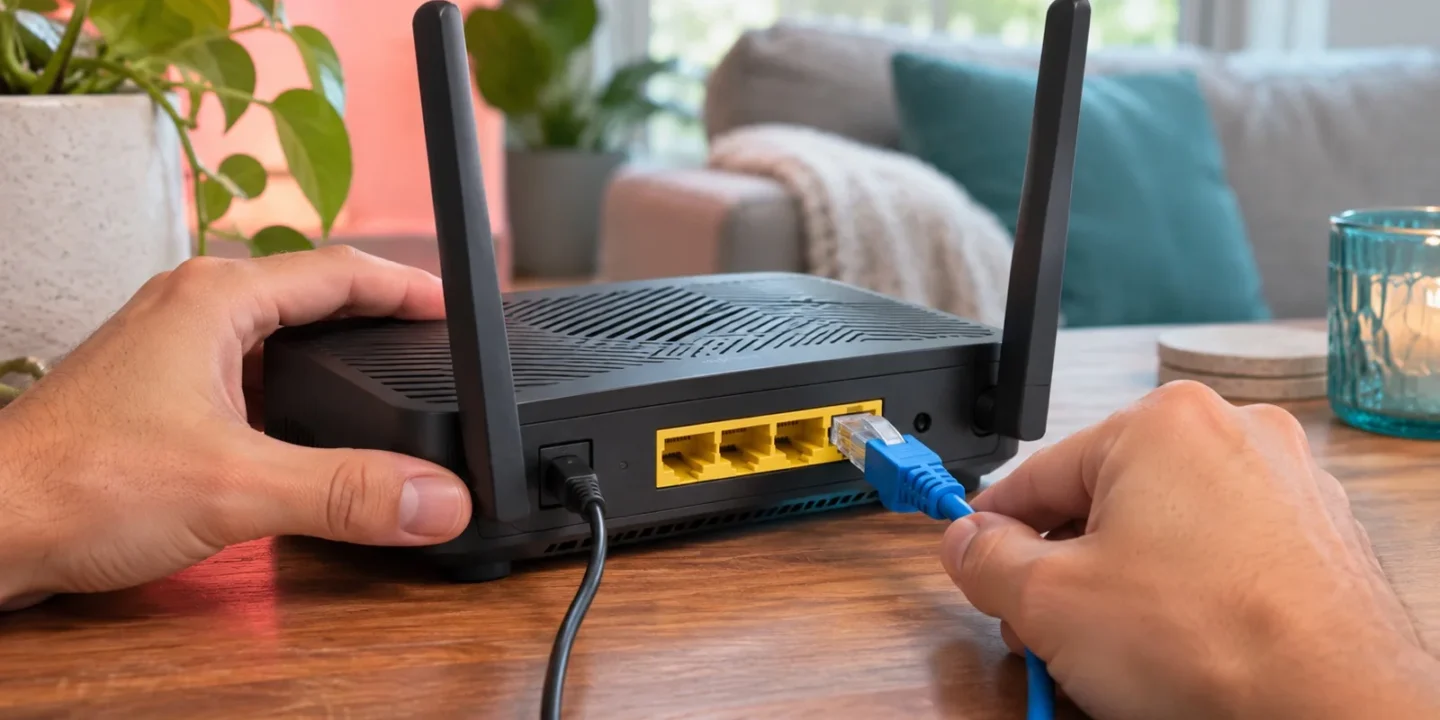
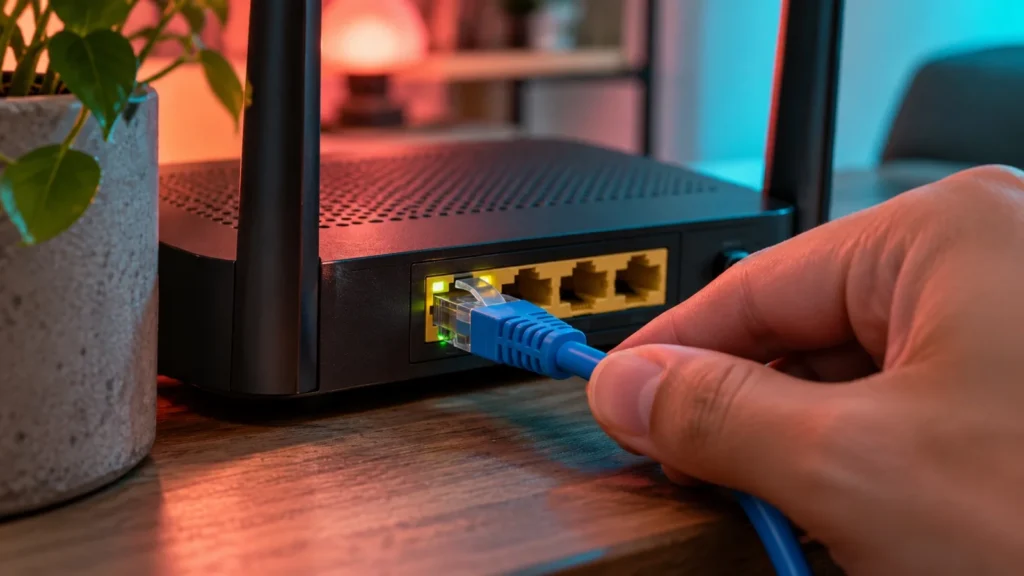
Where practical, connect the console to the router by a suitable Ethernet cable and repeat the same queue observation. Keep the account and item unchanged. If wired performance is consistently better, the Wi-Fi path deserves attention. If both behave similarly, the result narrows what you have learned without proving the remote delivery service is at fault. Official publisher connection guidance also recommends a wired test. EA’s general connection troubleshooting
If running a permanent cable is impractical, use the comparison to decide whether placement or household Wi-Fi conditions are worth improving. Test near the router before buying an extender or replacing equipment. A product recommendation should follow evidence about the path you actually use. A cable test can be informative even when your final arrangement returns to wireless for practical reasons.
Check competing household activity
Ask whether another device is backing up, downloading a large update, or streaming heavily during the slow period. Coordinate a short comparison with that activity paused if the household agrees. Do not interrupt somebody else’s call or work session unexpectedly. The purpose is to observe whether reduced competition changes the Xbox transfer, not to make the console the only device that can ever use the connection.
If a quieter period consistently works better, plan the large download for that time. If there is little difference, record it and avoid treating other people’s devices as the explanation without evidence. Shared networks vary, and your observations should guide the practical choice. A realistic download plan can be more useful than chasing a maximum speed the household cannot sustain during ordinary evening use.
Check service status before changing the router
Use the live Xbox status page and any relevant official publisher notice when a download or account service repeatedly fails. Record the alert and time if one exists. A generic guide cannot know the current service state during your own test. If there is a confirmed disruption, preserve the local setup and retest after the service recovers instead of adding several unrelated changes while the external condition persists. Xbox service status
If status reports no issue, keep that as one observation rather than a guarantee that every route is healthy. Give support the exact affected task and tests you ran. A useful report can say that the queue stalled, another title downloaded, and a wired comparison made no difference. Those facts narrow the case more effectively than only reporting the internet plan’s advertised speed.
Keep download and installation stages distinct
A console may spend time installing or applying data after a network transfer. Read the operation shown before interpreting a quiet network rate as a failure. If the item is waiting for storage or processing an installation stage, a networking change may not affect it. The correct next step depends on the actual message, available capacity, and supported troubleshooting for the displayed error.
If progress stops entirely, record how long you observed and which stage was displayed. Avoid promising that every pause is normal or declaring corruption from one quiet interval. A measured observation and exact code are the useful evidence. If support directs a reinstall, preserve wanted progress and understand the operation’s scope first rather than deleting saved data as part of a generic speed experiment.
Example: fast test, slower real download
Your console’s speed test reports a strong result, but GTA 6’s active queue moves at a lower rate. You record the actual amount transferred over several minutes, close a running game, and repeat. Then you compare wired and wireless performance. If the rate remains lower under both connections, you have evidence that the issue is not explained solely by the original Wi-Fi arrangement.
You can now estimate remaining time from observed progress and ask support with a clear comparison. There is no need to declare the speed test false or the hardware faulty. The tests observe different tasks and moments. What matters for your immediate plan is a stable transfer and a realistic finish estimate, while the collected evidence supports any further investigation into why performance differs.
Example: wired works much better
A console in a distant room downloads slowly over Wi-Fi. A temporary Ethernet test near the router produces consistently better progress during similar periods. That result gives a concrete reason to examine the original wireless path. The player tests a better placement or chooses to leave the cable in place for the huge initial transfer, depending on what suits the home.
They then verify the queue completes on the chosen setup. The finding does not require buying a new console or changing account ownership. It concerns the connection path used for this task. If the household later returns to the old placement, the same performance may return, so keep the successful conditions in a brief note rather than remembering only that the download eventually finished.
Example: speed is fine but input feels late
GTA 6 is already installed, and the player notices delayed camera response while using the local television. There is no active download or remote stream involved. A network speed test cannot establish the cause of that local input symptom. The next comparisons should include TV Game Mode, the display path, controller behavior, and the game’s own settings where available.
This is why describing the task comes first. The word lag can refer to different experiences. A public guide should not prescribe port forwarding for every use of that word. Record whether the problem is file transfer, image streaming, online communication, or the response to a local button press. The right comparison follows from that description and can save considerable time.
Avoid collecting speculative settings changes
Keep a record of any network setting you intentionally change and restore the prior state if the test does not help. Do not change DNS, ports, NAT rules, and wireless settings together merely because a forum lists them. Some tasks and services have specific requirements, which should come from the relevant official guidance and the person authorized to manage the network.
A supported change should answer a concrete question raised by the symptom. If the evidence points to a household schedule, investigate that schedule. If the message reports a service error, inspect that service. If a cable test improves the result, investigate the wireless path. This makes the process explainable and prevents a working home network from accumulating changes nobody can later describe.
Compare time periods without changing the setup
If the rate differs dramatically between a quiet morning and a busy evening, repeat the observation on more than one occasion before drawing a conclusion. Keep the connection type and title state stable and note household use. A recurring time-related pattern can help you plan the large transfer or provide evidence for the network provider. One isolated fast test followed by one slow one is a clue, while a repeatable pattern is a stronger basis for a practical scheduling decision. Record both good and poor results so the comparison remains fair.
Frequently asked questions
Which speed should I use in a download calculator?
Use a realistic sustained rate for the active transfer, preferably a range if it fluctuates. Enter the remaining amount rather than the original total when estimating the wait left. Installation work and changing service conditions can add uncertainty, so treat the result as planning arithmetic rather than a guaranteed finish time.
Does packet loss prove GTA 6 itself is defective?
A network observation describes a measured path and time. It does not identify a game defect by itself. Repeat the test, compare the connection type and other tasks, and keep the exact symptoms. Give support those observations so they can investigate the relevant network or service rather than assigning a cause from one isolated result.
Should I reset the router immediately?
First read the queue message, check whether other devices need the connection, and inspect relevant service status. A coordinated restart may be appropriate in a supported troubleshooting sequence, but it should follow a reason and a plan to retest. Avoid interrupting shared use or changing several settings before collecting a baseline.
When is the problem resolved?
For the download task, verify that the required transfer and installation complete and the intended account can launch the title. If performance remains slower than expected but completes reliably, you can still investigate that separately with your measurements. Keep completion and an ideal maximum rate as distinct goals so a usable result is recognized accurately.
Related guides
- GTA 6 Xbox Overnight Downloads: Sleep, Shutdown and Active Hours
- GTA 6 Xbox Storage Plan: Internal SSD, Expansion Card or USB Drive?
- GTA 6 Download Stuck? PS5 & Xbox Installation Fixes
- GTA 6 Download Time Calculator
- GTA 6 on Xbox After a Long Break: Quick Resume and Fresh-Launch Checks
- GTA 6 Downloads in PS5 Rest Mode: Setup and Troubleshooting